Power Monitoring with Smart PDUs and Home Assistant
Homelabs consume more power than most people expect. That Dell R720 pulling 200 watts at idle doesn't sound bad until you do the math: 200W times 24 hours times 365 days is 1,752 kWh per year. At the US average of $0.16/kWh, that's $280 annually for a single server. Add a NAS, a switch, a UPS, and a few Raspberry Pis, and you're looking at a real line item in your household budget.
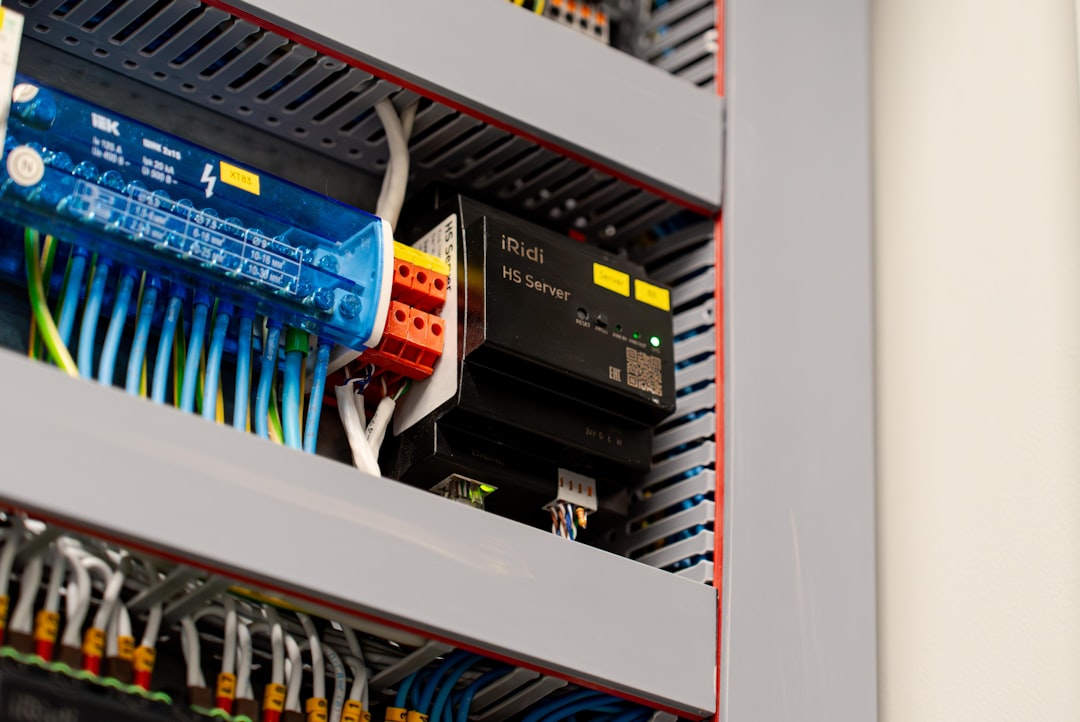
Photo by Aleksandr Lyaptsev on Unsplash
You can't optimize what you can't measure. Smart PDUs and power-monitoring plugs tell you exactly what each piece of equipment draws, and integrating them with Home Assistant gives you dashboards, historical trends, cost calculations, and automation triggers — like alerting you when power consumption spikes unexpectedly.

Smart PDUs vs Smart Plugs
There are two approaches to homelab power monitoring, and they serve different scales.
Smart Plugs
Individual smart plugs with power monitoring sit between an outlet and a device's power cable. They measure watts, voltage, current, and cumulative energy usage for that one device.
Good options for homelabs:
- TP-Link Kasa KP115 — WiFi, works with Home Assistant, accurate to ~1W, about $15 each
- Sonoff S31 — WiFi, flashable with Tasmota/ESPHome for local-only control, about $10
- Shelly Plug S — WiFi, local API, no cloud required, about $20
Smart plugs work well for individual devices: one plug per server, one for the NAS, one for the networking stack. They max out at 10-15A (1,200-1,800W), which is enough for any single homelab device.
Smart PDUs (Rackmount)
For rack setups, a smart PDU replaces your basic power strip. Rackmount smart PDUs provide per-outlet power monitoring, remote switching, and network management — all in a rack-mountable form factor.
Options:
- APC AP7900 series — The data center standard. Per-outlet switching, SNMP, web interface. Available used for $50-150 on eBay.
- Tripp Lite PDUMH series — Similar features, often cheaper used. SNMP and web management.
- CyberPower PDU81001 — More affordable new. Per-outlet metering, SNMP, web interface.
Used enterprise PDUs are the best value. Data centers cycle them out regularly, and a $75 used APC unit with 8 metered/switched outlets gives you per-device monitoring without plugging in eight individual smart plugs.
Setting Up a Smart Plug with Home Assistant
Let's start with the most common setup: a TP-Link Kasa or Shelly plug feeding data into Home Assistant.
TP-Link Kasa Integration
- Set up the Kasa plug using the Kasa app and connect it to your WiFi
- In Home Assistant, go to Settings > Devices & Services > Add Integration
- Search for TP-Link Kasa Smart and add it
- Home Assistant discovers the plug automatically
The integration exposes several sensors:
sensor.server_plug_current_consumption— Current wattssensor.server_plug_today_energy— kWh used todaysensor.server_plug_total_energy— Cumulative kWhswitch.server_plug— On/off control
Shelly Plug (Local API)
Shelly plugs work without any cloud account. Home Assistant discovers them via mDNS:
- Connect the Shelly plug to WiFi using its built-in AP
- In Home Assistant, the Shelly integration should auto-discover it
- If not, add the Shelly integration manually and enter the plug's IP
Shelly plugs expose the same power metrics and additionally support MQTT if you want to route data through your own broker.
ESPHome Flashed Sonoff
For the ultimate local-only setup, flash a Sonoff S31 with ESPHome:
sensor:
  - platform: cse7766
    current:
      name: "Server Current"
    voltage:
      name: "Server Voltage"
    power:
      name: "Server Power"
    energy:
      name: "Server Energy"

switch:
  - platform: gpio
    name: "Server Plug"
    pin: GPIO12
ESPHome devices integrate directly with Home Assistant with zero cloud dependency. The CSE7766 chip in the Sonoff S31 provides accurate power readings updated every second.
Setting Up SNMP-Based PDU Monitoring
Enterprise PDUs speak SNMP (Simple Network Management Protocol). Home Assistant can poll SNMP sensors, but it's more natural to use Prometheus with an SNMP exporter and feed the data to Grafana.
Prometheus SNMP Exporter
Configure the SNMP exporter to poll your PDU:
# snmp.yml target config
modules:
  apc_pdu:
    walk:
      - 1.3.6.1.4.1.318.1.1.12    # APC PDU MIB
    metrics:
      - name: pdu_outlet_power
        oid: 1.3.6.1.4.1.318.1.1.12.3.3.1.1.7
        type: gauge
        help: Power consumption per outlet in tenths of watts
Add to prometheus.yml:
  - job_name: 'pdu'
    static_configs:
      - targets:
        - 192.168.1.200  # PDU IP
    metrics_path: /snmp
    params:
      module: [apc_pdu]
    relabel_configs:
      - source_labels: [__address__]
        target_label: __param_target
      - target_label: __address__
        replacement: snmp-exporter:9116
Home Assistant SNMP Sensor
If you prefer Home Assistant for everything, add SNMP sensors directly:
sensor:
  - platform: snmp
    name: "PDU Total Power"
    host: 192.168.1.200
    community: public
    baseoid: 1.3.6.1.4.1.318.1.1.12.1.16.0
    unit_of_measurement: "W"
    value_template: "{{ value | float / 10 }}"
    scan_interval: 30
The specific OIDs depend on your PDU manufacturer. APC, Tripp Lite, and CyberPower each use different MIBs. Check your PDU's documentation or use snmpwalk to discover available OIDs:
snmpwalk -v2c -c public 192.168.1.200
Want more hardware guides? Get guides like this in your inbox — HomeLab Starter delivers one free deep-dive every week.
Building a Power Dashboard
Home Assistant Energy Dashboard
Home Assistant has a built-in Energy dashboard. Go to Settings > Dashboards > Energy and add your power sensors as grid consumption. It tracks:
- Current power draw per device
- Daily/weekly/monthly energy usage
- Cost based on your electricity rate
Configure your electricity cost under Settings > Energy > Electricity Grid > Add cost. Enter your per-kWh rate, and Home Assistant calculates running costs automatically.
Custom Lovelace Dashboard
For a homelab-focused view, build a custom dashboard:
type: entities
title: Homelab Power
entities:
  - entity: sensor.server1_power
    name: Proxmox Node 1
  - entity: sensor.server2_power
    name: Proxmox Node 2
  - entity: sensor.nas_power
    name: TrueNAS
  - entity: sensor.switch_power
    name: Network Switch
  - entity: sensor.total_homelab_power
    name: Total Lab Draw
Add a history graph card to track consumption over time:
type: history-graph
title: Power Consumption (24h)
hours_to_show: 24
entities:
  - entity: sensor.server1_power
  - entity: sensor.server2_power
  - entity: sensor.nas_power
Grafana Dashboard
If you're already running Prometheus and Grafana, create a power monitoring dashboard with panels for:
- Total lab power (sum of all monitored devices)
- Per-device power (stacked area chart)
- Daily energy cost (calculated from power and your electricity rate)
- Power trends (weekly/monthly comparison)
PromQL for total power:
sum(homelab_power_watts)
PromQL for estimated monthly cost:
sum(homelab_power_watts) / 1000 * 24 * 30 * 0.16
Automation Ideas
Power monitoring enables useful automations:
Alert on Unexpected Power Spikes
automation:
  - alias: "Homelab Power Spike Alert"
    trigger:
      - platform: numeric_state
        entity_id: sensor.total_homelab_power
        above: 600
        for: "00:05:00"
    action:
      - service: notify.discord
        data:
          message: "Homelab power draw is {{ states('sensor.total_homelab_power') }}W — check for runaway processes"
Alert on Server Down (Zero Power Draw)
automation:
  - alias: "Server Down Alert"
    trigger:
      - platform: numeric_state
        entity_id: sensor.server1_power
        below: 5
        for: "00:02:00"
    action:
      - service: notify.discord
        data:
          message: "Proxmox Node 1 appears to be off — power draw is {{ states('sensor.server1_power') }}W"
Monthly Cost Report
automation:
  - alias: "Monthly Power Cost Report"
    trigger:
      - platform: time
        at: "08:00:00"
    condition:
      - condition: template
        value_template: "{{ now().day == 1 }}"
    action:
      - service: notify.discord
        data:
          message: "Homelab power cost last month: ${{ (states('sensor.total_homelab_energy_monthly') | float * 0.16) | round(2) }}"
What Power Numbers to Expect
Typical homelab power consumption by device:
| Device | Idle | Load |
|---|---|---|
| Dell R720 (dual Xeon) | 150-200W | 300-450W |
| Dell R730 (dual Xeon) | 120-170W | 250-400W |
| HP DL360 Gen10 | 80-120W | 200-350W |
| Mini PC (Intel N100) | 6-10W | 15-25W |
| Raspberry Pi 4 | 3-5W | 6-7W |
| Synology DS920+ | 25-35W | 40-55W |
| Managed switch (24-port) | 15-25W | 20-30W |
| UPS (line-interactive) | 10-20W | 10-20W |
If your total lab draw is above 500W at idle, you're probably running enterprise gear that could be replaced with more efficient alternatives. Two Intel N100 mini PCs running Proxmox use 15W combined and handle most homelab workloads.
Power monitoring isn't glamorous, but it pays for itself. The first time you realize a server has been stuck in a boot loop pulling 400W for three days, or that moving a workload from an R720 to a mini PC saves $150/year, the investment in a few smart plugs becomes obvious.