Building a Homelab on ARM64: Raspberry Pi 5, Orange Pi, and Beyond
The x86 server under your desk draws 150 watts at idle, generates enough heat to warm a small room, and sounds like a jet engine when the fans spin up. Meanwhile, a cluster of four ARM64 single-board computers does meaningful work on 20 watts total, runs silent, and fits in a shoebox. For many homelab workloads, ARM64 boards aren't just a compromise — they're a better fit.
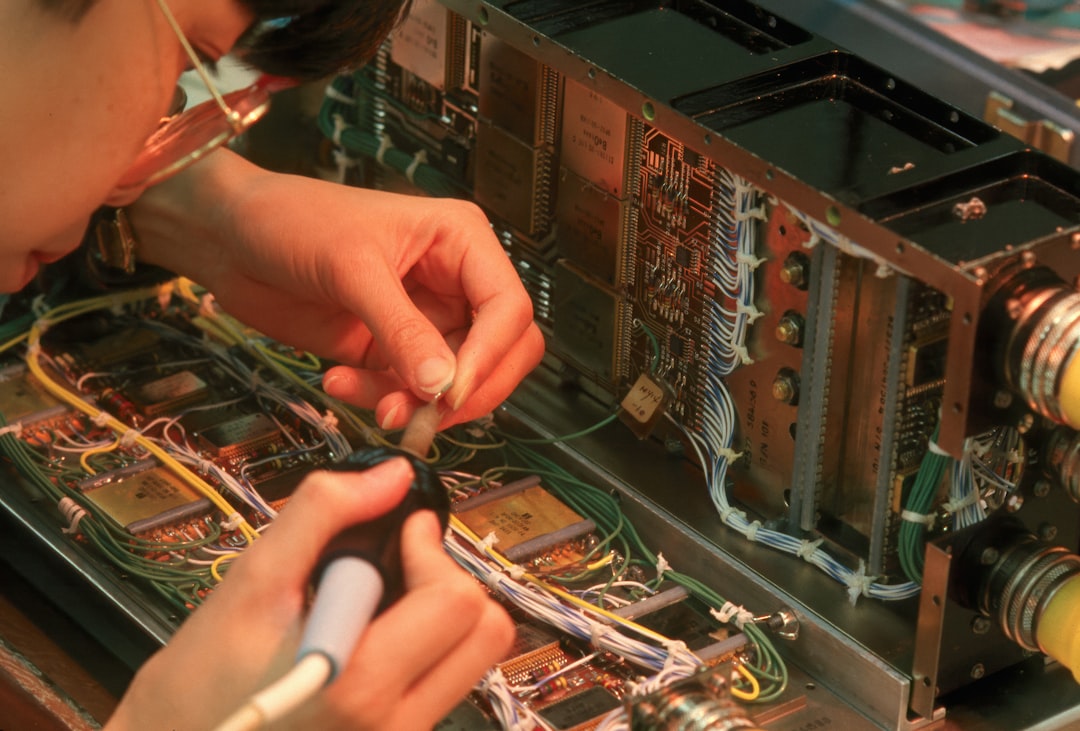
Photo by Community Archives of Belleville and Hastings County on Unsplash
The ARM64 ecosystem has matured dramatically in the past few years. Docker images are routinely built for both amd64 and arm64. Kubernetes distributions like K3s run natively on ARM. Ubuntu, Debian, and Fedora all have first-class ARM64 support. And the hardware itself has gotten genuinely powerful — the Raspberry Pi 5 and Rockchip RK3588-based boards offer performance that would have been respectable for a desktop PC not long ago.
This guide covers the practical side of building a homelab on ARM64: which boards to choose, what operating systems to run, how to handle Docker and multi-architecture images, performance expectations for real workloads, clustering strategies, and the power efficiency numbers that make ARM so compelling for always-on services.
ARM64 vs x86 for Homelab: The Real Tradeoffs
Before committing to ARM, understand what you're giving up and what you're gaining.
Where ARM64 Excels
- Power efficiency: 3-8 watts idle per board vs 50-150+ watts for a typical x86 server. For always-on services (Pi-hole, reverse proxy, monitoring, home automation), this adds up to significant electricity savings.
- Silence: Most SBCs are passively cooled or use tiny, quiet fans. No server room noise.
- Physical size: Credit-card to small-book sized. You can rack-mount a dozen boards in the space of one 1U server.
- Cost: $50-150 per board vs $200-500+ for used enterprise servers.
- Reliability: No moving parts (with passive cooling and SD/eMMC/NVMe storage). Less mechanical failure.
Where x86 Still Wins
- Raw single-thread performance: x86 desktop/server CPUs still outperform ARM SBCs on single-threaded workloads. If you're running CPU-intensive tasks like video transcoding with Plex/Jellyfin, a used Dell OptiPlex will outperform a Pi 5 significantly.
- RAM capacity: Most SBCs cap at 8-16 GB. x86 servers can have 64-256+ GB.
- PCIe expansion: While some ARM boards have M.2 slots, x86 offers full PCIe slots for HBAs, GPU passthrough, and 10GbE NICs.
- Software compatibility: Some niche software only has x86 binaries. Most mainstream homelab software is multi-arch now, but check before committing.
- ECC memory: Critical for ZFS and data integrity. Virtually no ARM SBCs support ECC.
The Hybrid Approach
Many homelab operators run both: an x86 server for heavy lifting (VMs, transcoding, ZFS storage) and ARM boards for lightweight always-on services. This gives you the best of both worlds — power efficiency where it matters, and raw performance when you need it.
SBC Comparison: Which Board to Buy
The ARM SBC market has exploded. Here are the boards that make the most sense for homelab use in 2026:
| Board | SoC | CPU Cores | RAM Options | Storage | Network | NVMe | Price Range |
|---|---|---|---|---|---|---|---|
| Raspberry Pi 5 | BCM2712 | 4x A76 @ 2.4GHz | 4, 8 GB | microSD, NVMe via HAT | 1GbE | Via HAT+ | $60-80 |
| Orange Pi 5 | RK3588S | 4x A76 + 4x A55 | 4, 8, 16 GB | microSD, eMMC, M.2 NVMe | 1GbE | Native M.2 | $70-130 |
| ROCK 5B | RK3588 | 4x A76 + 4x A55 | 4, 8, 16 GB | microSD, eMMC, M.2 NVMe | 2.5GbE | Native M.2 | $80-150 |
| Khadas Edge 2 | RK3588S | 4x A76 + 4x A55 | 8, 16 GB | eMMC, M.2 NVMe | WiFi 6 | Native M.2 | $130-200 |
| Libre AML-S905X-CC | S905X | 4x A53 @ 1.5GHz | 2 GB | microSD, eMMC | 100Mbps | No | $35 |
| Raspberry Pi 4 | BCM2711 | 4x A72 @ 1.8GHz | 2, 4, 8 GB | microSD, USB SSD | 1GbE | No | $35-55 |
Raspberry Pi 5
The Pi 5 is the safe choice. It has the largest community, the best software support, the most documentation, and a massive ecosystem of cases, HATs, and accessories. The BCM2712 SoC is a significant upgrade from the Pi 4 — roughly 2-3x faster on most workloads. The new PCIe connector (via the official NVMe HAT+) eliminates the SD card bottleneck that plagued earlier Pis.
Best for: First ARM homelab, Pi-hole, Home Assistant, lightweight containers, learning.
Orange Pi 5 / ROCK 5B
The RK3588-based boards are the performance leaders. Eight CPU cores (four big, four little), up to 16 GB RAM, native M.2 NVMe, and (on the ROCK 5B) 2.5GbE networking. These boards can genuinely replace a low-end x86 server for many workloads.
Best for: Serious containerized workloads, Kubernetes nodes, databases, media servers (with limitations).
Budget Options
The Raspberry Pi 4 and Libre boards remain excellent for single-purpose services where you need "just enough" compute — a dedicated Pi-hole, a WireGuard VPN endpoint, or a Zigbee coordinator for home automation. At $35-55, you can deploy them liberally.
Operating System Options
ARM64 OS support varies by board. Here's what works well:
Raspberry Pi 5
# Raspberry Pi OS (Debian-based, official)
# Download from https://www.raspberrypi.com/software/
# Best hardware support, recommended for beginners

# Ubuntu Server 24.04 LTS
# Full-featured, larger package ecosystem
# Download ARM64 image from ubuntu.com

# DietPi
# Minimal, optimized for SBCs
# Great for headless servers
RK3588 Boards (Orange Pi 5, ROCK 5B)
# Armbian (recommended for non-Pi boards)
# Community-maintained, excellent hardware support
# Supports most RK3588 boards
# Download from armbian.com

# Ubuntu/Debian (vendor images)
# Orange Pi and Radxa provide their own images
# Quality varies — Armbian is often better maintained

# DietPi
# Also supports RK3588 boards
# Minimal footprint for headless operation
First Boot Setup
Regardless of OS, the first-boot process for an ARM homelab node looks like this:
# Flash the image to microSD or NVMe
# (using Raspberry Pi Imager, Balena Etcher, or dd)

# Boot and connect via SSH (or HDMI for initial setup)
ssh user@board-ip

# Update everything
sudo apt update && sudo apt upgrade -y

# Set hostname
sudo hostnamectl set-hostname pi-node-01

# Configure static IP (or use DHCP reservation)
sudo nmcli con mod "Wired connection 1" \
    ipv4.method manual \
    ipv4.addresses 192.168.1.101/24 \
    ipv4.gateway 192.168.1.1 \
    ipv4.dns "192.168.1.1"

# Enable cgroups for Docker/Kubernetes (if not already enabled)
# For Raspberry Pi, add to /boot/firmware/cmdline.txt:
#   cgroup_enable=cpuset cgroup_enable=memory cgroup_memory=1

# Reboot
sudo reboot
Want more hardware guides? Get guides like this in your inbox — HomeLab Starter delivers one free deep-dive every week.
Docker on ARM64
Docker runs natively on ARM64 and most popular homelab images are multi-architecture. Install Docker the same way you would on x86:
# Install Docker
curl -fsSL https://get.docker.com | sh
sudo usermod -aG docker $USER

# Verify ARM64
docker info | grep Architecture
# Expected output: Architecture: aarch64
Multi-Architecture Images
Most popular homelab containers publish multi-arch images that work transparently on ARM64:
| Software | ARM64 Support | Notes |
|---|---|---|
| Nginx / Caddy | Native | No issues |
| PostgreSQL / MySQL / MariaDB | Native | No issues |
| Redis / Valkey | Native | No issues |
| Grafana | Native | No issues |
| Prometheus | Native | No issues |
| Pi-hole | Native | Primary platform |
| Home Assistant | Native | Excellent ARM support |
| Nextcloud | Native | No issues |
| Vaultwarden | Native | No issues |
| Gitea / Forgejo | Native | No issues |
| Jellyfin | Native | No hardware transcoding on most SBCs |
| Plex | Native | Transcoding limited on ARM |
| Frigate NVR | Limited | Coral TPU required for good performance |
Handling x86-Only Images
Occasionally you'll encounter images that don't have ARM64 builds. You have a few options:
# Option 1: Check if the project has an ARM64 fork
# Search Docker Hub or GitHub for arm64/aarch64 variants

# Option 2: Build from source
git clone https://github.com/some-project/some-app.git
cd some-app
docker build -t some-app:arm64 .

# Option 3: Use QEMU emulation (slow, last resort)
docker run --platform linux/amd64 some-x86-only-image
# This uses qemu-user-static to emulate x86 on ARM
# Performance is 5-20x slower — only use for light/infrequent workloads
Performance Expectations
Let's set realistic expectations with benchmark-style comparisons. These are approximate figures based on common homelab workloads:
Sysbench CPU (Single-Thread)
| Board | Events/sec | Relative |
|---|---|---|
| Raspberry Pi 4 (A72 @ 1.8GHz) | ~1,200 | 1.0x |
| Raspberry Pi 5 (A76 @ 2.4GHz) | ~3,400 | 2.8x |
| Orange Pi 5 (A76 @ 2.4GHz) | ~3,600 | 3.0x |
| Intel N100 (mini PC) | ~4,800 | 4.0x |
| Intel i5-12400 | ~8,500 | 7.1x |
Docker Container Startup
# Typical container startup times on Pi 5 with NVMe
# (comparable to a low-end x86 system)
nginx:alpine      — ~1.5 seconds
postgres:16       — ~3 seconds
grafana:latest    — ~5 seconds
nextcloud:latest  — ~8 seconds
Practical Workload Performance
- Pi-hole: Handles 50,000+ queries/day on a Pi Zero. Any ARM64 board is massively overkill.
- Reverse proxy (Caddy/Nginx): Saturates gigabit ethernet on a Pi 5. No bottleneck.
- PostgreSQL: Handles typical homelab query loads without issue on Pi 5 or RK3588 boards. For large datasets (50+ GB), you'll want NVMe storage.
- Grafana + Prometheus: Runs comfortably on 2 GB RAM with moderate dashboard complexity.
- Jellyfin (direct play): Works great — no transcoding needed. Hardware transcoding is limited on ARM.
- Home Assistant: Excellent. This is one of the primary use cases for Raspberry Pi.
Clustering ARM Boards
Running multiple ARM boards as a cluster unlocks serious capability. Four Pi 5 boards with 8 GB RAM each give you 16 CPU cores and 32 GB RAM for under $400 — plus redundancy if a node dies.
K3s: Lightweight Kubernetes for ARM
K3s is the de facto Kubernetes distribution for ARM homelabs. It's a certified Kubernetes distribution that strips out heavy components and runs in ~512 MB RAM:
# Install K3s on the first node (server)
curl -sfL https://get.k3s.io | sh -

# Get the join token
sudo cat /var/lib/rancher/k3s/server/node-token

# Join additional nodes (agents)
curl -sfL https://get.k3s.io | K3S_URL=https://pi-node-01:6443 \
    K3S_TOKEN="your-token-here" sh -

# Verify cluster
sudo kubectl get nodes
# NAME         STATUS   ROLES                  AGE   VERSION
# pi-node-01   Ready    control-plane,master   5m    v1.29.x+k3s1
# pi-node-02   Ready    <none>                 2m    v1.29.x+k3s1
# pi-node-03   Ready    <none>                 1m    v1.29.x+k3s1
Docker Swarm: Simpler Alternative
If Kubernetes feels like overkill (and for many homelabs, it is), Docker Swarm provides basic clustering with a much gentler learning curve:
# Initialize swarm on first node
docker swarm init --advertise-addr 192.168.1.101

# Join other nodes
docker swarm join --token SWMTKN-1-xxx 192.168.1.101:2377

# Deploy a service across the swarm
docker service create \
    --name nginx \
    --replicas 3 \
    --publish 80:80 \
    nginx:alpine
Shared Storage for Clusters
Clusters need shared storage. Options for ARM homelabs:
| Solution | Complexity | Performance | Best For |
|---|---|---|---|
| NFS from NAS | Low | Good for most workloads | Simple shared configs/data |
| Longhorn | Medium | Good (requires NVMe on each node) | K3s persistent volumes |
| GlusterFS | Medium-High | Good | Distributed file storage |
| Ceph | High | Excellent | Not recommended for SBCs (too resource heavy) |
| Local NVMe + rsync | Low | Excellent (local) | Per-node data with manual sync |
For most ARM homelabs, an NFS share from a NAS (Synology, TrueNAS, or even another Pi with an external drive) is the right answer. It's simple, reliable, and the performance is fine for configuration files, small databases, and web content.
Power Efficiency: The Numbers
Power consumption is one of the strongest arguments for an ARM homelab. Here's a realistic comparison for a "typical homelab" running a reverse proxy, DNS, monitoring stack, home automation, and a few other containers:
| Setup | Idle Power | Annual Cost (@$0.12/kWh) | Annual Cost (@$0.30/kWh) |
|---|---|---|---|
| 1x Pi 5 (8GB) | ~5W | $5 | $13 |
| 4x Pi 5 cluster | ~22W | $23 | $58 |
| 1x Orange Pi 5 (16GB) | ~4W | $4 | $11 |
| 1x Intel N100 mini PC | ~10W | $11 | $26 |
| 1x Dell OptiPlex (i5) | ~35W | $37 | $92 |
| 1x Dell R720 (dual Xeon) | ~120W | $126 | $315 |
| 1x Supermicro 1U (Xeon) | ~80W | $84 | $210 |
A four-node Pi 5 cluster running 24/7 costs about the same in electricity per year as running an enterprise rack server for two months. If your homelab is always-on (and most are), this difference compounds year over year.
Measuring Power Draw
Always measure actual power consumption rather than relying on specs:
# Use a Kill-A-Watt or similar power meter at the wall outlet

# For USB-powered SBCs, a USB power meter works:
# Example: Plugable USB-C power meter (~$15)

# Software-based estimation (less accurate but free):
# On Raspberry Pi:
vcgencmd measure_volts
vcgencmd measure_temp
# Note: This doesn't directly measure wall power consumption
Practical Tips and Gotchas
A few things that trip people up when building ARM homelabs:
Use NVMe storage, not microSD. SD cards are slow and wear out under constant writes (databases, logs, container layers). The Pi 5 NVMe HAT+ or native M.2 on RK3588 boards is a game-changer. Budget $15-30 for a 256 GB NVMe drive per board.
Boot from NVMe, not SD. Most modern boards support NVMe boot. This eliminates the SD card as a failure point entirely. On the Pi 5, update the bootloader firmware to enable NVMe boot priority.
Get good power supplies. Flaky power causes mysterious crashes, SD card corruption, and hardware damage. Use the official power supply for Pi 5 (27W USB-C), or a quality USB-C PD supply rated for at least 15W per board. For clusters, a multi-port USB-C charger simplifies wiring.
Passive cooling works for most workloads. A metal case with thermal pads (like the Argon ONE for Pi, or Radxa's aluminum cases) handles sustained loads without a fan. Active cooling is only needed for sustained 100% CPU workloads.
Plan your networking. Four SBCs means four ethernet cables. A small 8-port gigabit switch (TP-Link, Netgear) costs $20 and simplifies wiring. For the ROCK 5B's 2.5GbE, you'll need a 2.5GbE switch — they're reasonably priced now.
Label everything. When you have four identical-looking boards, knowing which one is pi-node-03 saves debugging time. Label the boards, their cables, and their power supplies.
Getting Started: Your First ARM Homelab
If you're starting from scratch, here's a pragmatic path:
- Buy one Pi 5 (8GB) with the NVMe HAT+ and a 256 GB NVMe drive. Total: ~$120.
- Flash Ubuntu Server 24.04 or Raspberry Pi OS Lite.
- Install Docker and deploy your first few services: Pi-hole, a reverse proxy (Caddy), and Uptime Kuma for monitoring.
- Run it for a month. See how the performance feels for your workload.
- If you want more, add a second board. Try Docker Swarm or K3s for clustering.
- If you need serious compute, consider an Orange Pi 5 or ROCK 5B with 16 GB RAM for heavier workloads.
The beauty of ARM homelabs is that you can start small and grow incrementally. Each board is a $60-150 investment, not a $500+ commitment. If a board dies, replacing it is cheap and your cluster keeps running on the remaining nodes.
ARM64 isn't the right choice for every homelab — if you need ZFS with ECC RAM, heavy virtualization, or GPU transcoding, x86 is still the way to go. But for the large majority of homelab services — containers, web apps, monitoring, DNS, VPN, home automation — ARM64 delivers the performance you need at a fraction of the power cost and noise. That's a trade worth making.