Advanced Homelab Security: CrowdSec, Fail2ban, Network Segmentation, and Defense in Depth
You've disabled password authentication on SSH, changed default ports, and enabled a basic firewall. That handles the low-hanging fruit — the automated bots scanning for open SSH ports with default credentials. But a properly secured homelab goes deeper than perimeter defense.
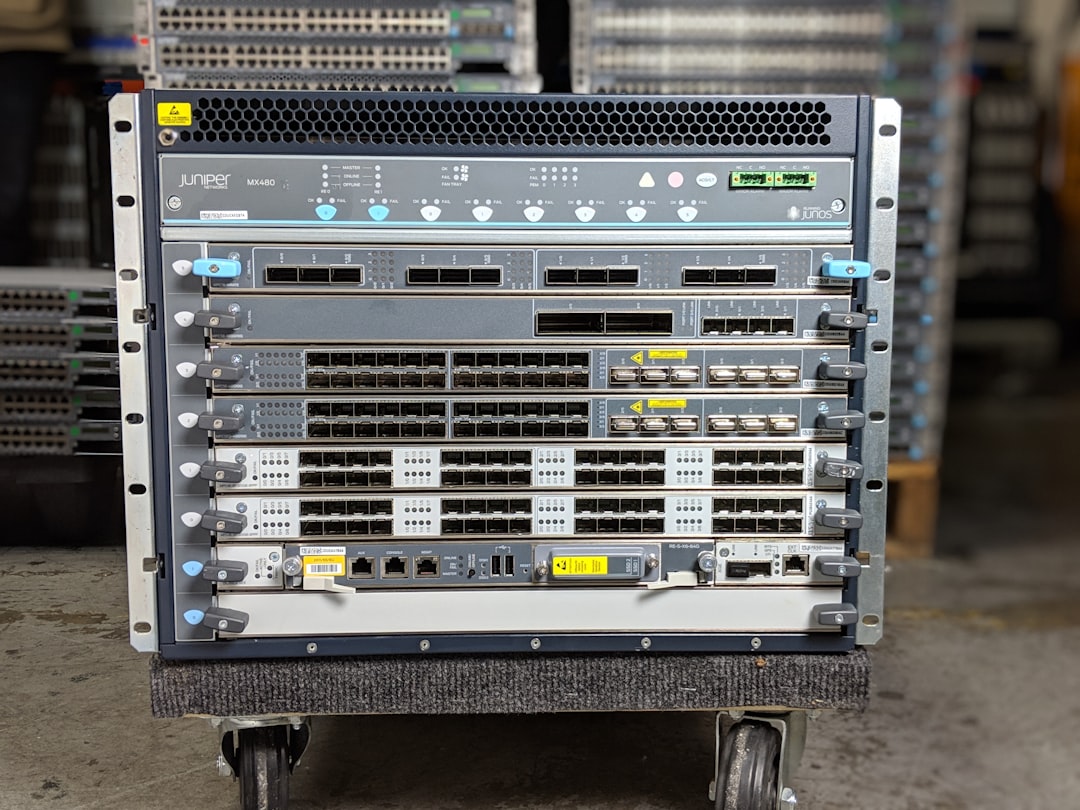
Photo by Joe Murray on Unsplash
This guide covers the next level of homelab security: intrusion prevention systems that learn from global threat intelligence, network segmentation that limits blast radius, and the layered defense approach that makes your homelab genuinely hard to compromise.

Defense in Depth: The Layered Approach
Security isn't a single wall — it's a series of barriers where each layer catches what the previous one missed. For a homelab:
Layer 1: Network perimeter (firewall, VPN-only access)
Layer 2: Network segmentation (VLANs, inter-zone rules)
Layer 3: Intrusion prevention (CrowdSec, Fail2ban)
Layer 4: Application security (authentication, authorization)
Layer 5: Host hardening (updates, minimal attack surface)
Layer 6: Monitoring and alerting (know when something's wrong)
Each layer is independently valuable, but together they create a security posture that's far stronger than any single measure.
Fail2ban: Ban Offenders Automatically
Fail2ban monitors log files for failed authentication attempts and automatically bans offending IP addresses by adding firewall rules. It's been the standard homelab intrusion prevention tool for years.
Installation
# Debian/Ubuntu
sudo apt install fail2ban

# Fedora
sudo dnf install fail2ban

# Start and enable
sudo systemctl enable --now fail2ban
Configuration
Fail2ban uses a jail system. Each jail monitors a specific service and defines ban parameters. Never edit the default config files — they get overwritten on updates. Instead, create local overrides:
sudo cp /etc/fail2ban/jail.conf /etc/fail2ban/jail.local
Edit /etc/fail2ban/jail.local:
[DEFAULT]
# Ban for 1 hour (default is 10 minutes — too short)
bantime = 3600

# Window to count failures
findtime = 600

# Number of failures before ban
maxretry = 5

# Use nftables (modern) instead of iptables
banaction = nftables-multiport
banaction_allports = nftables-allports

# Email notifications (optional)
# destemail = [email protected]
# sender = [email protected]
# action = %(action_mwl)s

[sshd]
enabled = true
port = ssh
maxretry = 3
bantime = 86400    # 24 hours for SSH failures

[nginx-http-auth]
enabled = true
filter = nginx-http-auth
logpath = /var/log/nginx/error.log

[nginx-botsearch]
enabled = true
filter = nginx-botsearch
logpath = /var/log/nginx/access.log
maxretry = 2
Custom Jails for Homelab Services
Nextcloud brute force protection:
Create /etc/fail2ban/filter.d/nextcloud.conf:
[Definition]
failregex = ^{"reqId":".*","level":2,"time":".*","remoteAddr":"<HOST>","user":".*","app":"core","method":".*","url":".*","message":"Login failed:.*"
Add to jail.local:
[nextcloud]
enabled = true
filter = nextcloud
logpath = /path/to/nextcloud-data/nextcloud.log
maxretry = 5
bantime = 3600
Vaultwarden (Bitwarden) protection:
Create /etc/fail2ban/filter.d/vaultwarden.conf:
[Definition]
failregex = ^.*Username or password is incorrect\. Try again\. IP: <HOST>\..*$
[vaultwarden]
enabled = true
filter = vaultwarden
logpath = /path/to/vaultwarden/vaultwarden.log
maxretry = 3
bantime = 86400
Managing Fail2ban
# Check jail status
sudo fail2ban-client status
sudo fail2ban-client status sshd

# Manually ban an IP
sudo fail2ban-client set sshd banip 192.168.1.100

# Unban an IP
sudo fail2ban-client set sshd unbanip 192.168.1.100

# Check which IPs are banned
sudo fail2ban-client get sshd banned

# View ban log
sudo tail -f /var/log/fail2ban.log
Fail2ban Limitations
- Single-machine scope: Fail2ban only protects the machine it runs on. An attacker banned on your web server can still hit your NAS.
- No threat intelligence: Fail2ban reacts to attacks — it doesn't proactively block known bad IPs.
- Log-dependent: If a service doesn't log failed attempts in a parseable format, Fail2ban can't protect it.
- Resource usage on high-traffic services: Parsing large log files can consume CPU.
CrowdSec: Community-Powered Security
CrowdSec is the modern answer to Fail2ban's limitations. It combines local log analysis with a global community threat database. When one CrowdSec user detects an attack, the offending IP gets shared with all other users. Think of it as a neighborhood watch for the internet.
How CrowdSec Works
1. Log Sources → CrowdSec Agent reads logs (nginx, SSH, Docker, etc.)
2. Scenarios → Pattern matching detects attacks (brute force, scanning, etc.)
3. Decisions → Agent creates local ban decisions
4. Community → Anonymous attack data shared with CrowdSec Central API
5. Blocklists → Agent receives community blocklists of known attackers
6. Bouncers → Enforcement components (firewall, nginx, Cloudflare) apply bans
The key advantage over Fail2ban: CrowdSec blocks known malicious IPs before they attack you, based on the community's collective intelligence.
Installation
# Add the CrowdSec repository
curl -s https://install.crowdsec.net | sudo sh

# Install the agent
sudo apt install crowdsec              # Debian/Ubuntu
sudo dnf install crowdsec              # Fedora

# Install the firewall bouncer (enforcement)
sudo apt install crowdsec-firewall-bouncer-nftables    # Debian/Ubuntu
sudo dnf install crowdsec-firewall-bouncer-nftables    # Fedora
Or Deploy with Docker
services:
  crowdsec:
    image: crowdsecurity/crowdsec:latest
    container_name: crowdsec
    restart: unless-stopped
    ports:
      - "8080:8080"      # API (for bouncers)
      - "6060:6060"      # Metrics (Prometheus)
    volumes:
      - ./crowdsec-config:/etc/crowdsec
      - ./crowdsec-data:/var/lib/crowdsec/data
      # Mount log sources
      - /var/log:/var/log:ro
      - /var/log/nginx:/var/log/nginx:ro
      # For Docker container logs
      - /var/lib/docker/containers:/var/lib/docker/containers:ro
    environment:
      - COLLECTIONS=crowdsecurity/nginx crowdsecurity/sshd crowdsecurity/linux
      - GID=1000
      # Enroll with CrowdSec Console (optional, for web dashboard)
      # - ENROLL_KEY=your-enrollment-key
Collections and Parsers
CrowdSec uses "collections" — bundles of parsers and scenarios for specific services:
# Install collections for your services
sudo cscli collections install crowdsecurity/nginx
sudo cscli collections install crowdsecurity/sshd
sudo cscli collections install crowdsecurity/linux
sudo cscli collections install crowdsecurity/pgsql
sudo cscli collections install crowdsecurity/docker

# List installed collections
sudo cscli collections list

# Update all collections
sudo cscli hub update
sudo cscli hub upgrade
Bouncer Configuration
Bouncers are the enforcement layer. The firewall bouncer adds nftables/iptables rules to block banned IPs:
# Register a bouncer
sudo cscli bouncers add firewall-bouncer

# The command outputs an API key — use it in the bouncer config
# /etc/crowdsec/bouncers/crowdsec-firewall-bouncer.yaml
api_url: http://localhost:8080/
api_key: <generated-api-key>
mode: nftables
update_frequency: 10s
For Nginx/Traefik, use the OpenResty or Traefik bouncer:
  traefik-bouncer:
    image: fbonalair/traefik-crowdsec-bouncer
    container_name: traefik-bouncer
    restart: unless-stopped
    environment:
      - CROWDSEC_BOUNCER_API_KEY=your-bouncer-api-key
      - CROWDSEC_AGENT_HOST=crowdsec:8080
    depends_on:
      - crowdsec
CrowdSec Console
Register at app.crowdsec.net (free) for a web dashboard showing:
- Alerts and decisions across all your machines
- Community blocklist statistics
- Geographic distribution of attacks
- Trend analysis over time
# Enroll your instance
sudo cscli console enroll <your-enrollment-key>
CrowdSec vs Fail2ban
| Feature | CrowdSec | Fail2ban |
|---|---|---|
| Community intelligence | Yes (global blocklists) | No |
| Proactive blocking | Yes (block before attack) | No (reactive only) |
| Multi-machine | Yes (shared decisions via API) | No (single machine) |
| Resource usage | Moderate | Low |
| Configuration | YAML + Hub | ini files |
| Docker support | Native | Possible but awkward |
| Web dashboard | CrowdSec Console (free) | No |
| Maturity | Newer (2020) | Very mature (2004) |
| IPv6 support | Yes | Yes |
| Alerting | Built-in + integrations | Email-based |
Verdict: CrowdSec is the better choice for homelabs exposed to the internet. Fail2ban is simpler for purely internal services. Many homelabbers run both — CrowdSec for internet-facing services, Fail2ban for local services that need simple log-based protection.
Want more security guides? Get guides like this in your inbox — HomeLab Starter delivers one free deep-dive every week.
UFW: Uncomplicated Firewall
UFW is the user-friendly frontend for iptables/nftables. It makes firewall management approachable without sacrificing functionality.
Basic Setup
# Install (usually pre-installed on Ubuntu)
sudo apt install ufw

# Set default policies
sudo ufw default deny incoming
sudo ufw default allow outgoing

# Allow SSH (do this BEFORE enabling UFW!)
sudo ufw allow ssh

# Enable the firewall
sudo ufw enable

# Check status
sudo ufw status verbose
Rules for Common Homelab Services
# Web services (behind reverse proxy)
sudo ufw allow 80/tcp comment "HTTP"
sudo ufw allow 443/tcp comment "HTTPS"

# Allow only from your LAN
sudo ufw allow from 192.168.1.0/24 to any port 8096 comment "Jellyfin (LAN only)"
sudo ufw allow from 192.168.1.0/24 to any port 3000 comment "Gitea (LAN only)"
sudo ufw allow from 192.168.1.0/24 to any port 9090 comment "Prometheus (LAN only)"

# WireGuard VPN
sudo ufw allow 51820/udp comment "WireGuard"

# Game servers (specific ports, from anywhere)
sudo ufw allow 25565/tcp comment "Minecraft"
sudo ufw allow 2456:2457/udp comment "Valheim"

# Docker note: UFW doesn't control Docker's port bindings by default!
# Docker bypasses UFW by manipulating iptables directly
The Docker + UFW Problem
By default, Docker bypasses UFW entirely. When you publish a port with -p 8080:80, Docker adds its own iptables rules that UFW doesn't manage. This means your firewall rules are effectively useless for Docker containers.
Fix 1: Disable Docker's iptables manipulation
// /etc/docker/daemon.json
{
  "iptables": false
}
Then manage Docker container access through UFW. Warning: this also breaks container-to-container networking and external access — you'll need to manually configure all the iptables rules Docker normally handles.
Fix 2: Use ufw-docker (recommended)
# Install ufw-docker helper
sudo wget -O /usr/local/bin/ufw-docker https://github.com/chaifeng/ufw-docker/raw/master/ufw-docker
sudo chmod +x /usr/local/bin/ufw-docker

# Install the UFW after rules
sudo ufw-docker install

# Now manage Docker container access through ufw-docker
sudo ufw-docker allow jellyfin 8096/tcp
sudo ufw-docker allow nginx-proxy-manager 443/tcp
Fix 3: Don't publish ports, use a reverse proxy network
The cleanest solution: don't expose container ports to the host at all. Use a Docker network that your reverse proxy shares with backend services. Only the proxy exposes ports 80/443:
services:
  jellyfin:
    # No "ports:" section
    networks:
      - proxy

  nginx-proxy-manager:
    ports:
      - "80:80"      # Only these are exposed
      - "443:443"
    networks:
      - proxy
Network Segmentation
Network segmentation is the practice of dividing your network into isolated zones. If an attacker compromises a device on your IoT network, they can't reach your NAS or your management interfaces.
VLAN-Based Segmentation
VLANs (Virtual LANs) create logical network boundaries on a single physical network. You need a managed switch and a router/firewall that supports VLANs.
A typical homelab VLAN design:
| VLAN ID | Name | Subnet | Purpose |
|---|---|---|---|
| 1 | Management | 192.168.1.0/24 | Switch/router management, IPMI/iDRAC |
| 10 | Trusted | 192.168.10.0/24 | Personal devices (laptops, phones) |
| 20 | Servers | 192.168.20.0/24 | Homelab servers and services |
| 30 | IoT | 192.168.30.0/24 | Smart home devices, cameras |
| 40 | Guest | 192.168.40.0/24 | Guest WiFi, untrusted devices |
| 50 | DMZ | 192.168.50.0/24 | Internet-facing services |
Firewall Rules Between VLANs
The critical part is the inter-VLAN firewall rules. Without them, VLANs are just organizational — devices can still communicate freely.
OPNsense/pfSense rules example:
# Trusted (VLAN 10) — Can access everything
ALLOW Trusted → Servers     (all ports)
ALLOW Trusted → Management  (all ports)
ALLOW Trusted → IoT         (specific ports: 80, 443, 8123)
ALLOW Trusted → Internet    (all ports)

# Servers (VLAN 20) — Can access internet, limited internal
ALLOW Servers → Internet    (all ports)
ALLOW Servers → Servers     (all ports)
DENY  Servers → Trusted     (block)
DENY  Servers → Management  (block)
ALLOW Servers → IoT         (specific: MQTT 1883, API ports)

# IoT (VLAN 30) — Heavily restricted
ALLOW IoT     → Internet    (NTP, DNS, specific cloud APIs)
DENY  IoT     → Trusted     (block)
DENY  IoT     → Servers     (block, except specific services)
DENY  IoT     → Management  (block)
ALLOW IoT     → IoT         (devices can talk to each other)

# Guest (VLAN 40) — Internet only
ALLOW Guest   → Internet    (all ports)
DENY  Guest   → ALL RFC1918 (block all private networks)

# DMZ (VLAN 50) — Internet-facing, isolated from internal
ALLOW DMZ     → Internet    (all ports)
DENY  DMZ     → Trusted     (block)
DENY  DMZ     → Servers     (block, except specific backends)
DENY  DMZ     → Management  (block)
IoT Isolation in Practice
IoT devices are the weakest link in most home networks. Many have poor security, rarely get updates, and phone home to unknown servers. Isolating them on their own VLAN prevents a compromised smart bulb from becoming a pivot point into your homelab.
Practical IoT VLAN rules:
# Allow IoT devices to reach the internet (for cloud services)
ALLOW IoT → Internet:53/udp    (DNS)
ALLOW IoT → Internet:123/udp   (NTP)
ALLOW IoT → Internet:443/tcp   (HTTPS for cloud APIs)
ALLOW IoT → Internet:8883/tcp  (MQTT over TLS)

# Allow Home Assistant to reach IoT devices
ALLOW 192.168.20.10 → IoT:*   (Home Assistant server only)

# Block everything else
DENY IoT → RFC1918             (no access to internal networks)
SSH Hardening (Beyond the Basics)
If you've already disabled password auth and root login, these additional measures further reduce your SSH attack surface.
Restrict SSH to Specific Users
# /etc/ssh/sshd_config
AllowUsers admin
# Or restrict to a group
AllowGroups ssh-users
SSH Key Types and Best Practices
# Use Ed25519 keys (stronger and faster than RSA)
ssh-keygen -t ed25519 -C "homelab-admin"

# If you must use RSA, use 4096 bits minimum
ssh-keygen -t rsa -b 4096 -C "homelab-admin"
Limit SSH Access by IP
# /etc/ssh/sshd_config — Only allow SSH from management VLAN
ListenAddress 192.168.1.10    # Only listen on management interface

# Or use firewall rules
sudo ufw allow from 192.168.1.0/24 to any port 22
sudo ufw deny 22
SSH Certificate Authentication
For larger homelabs, SSH certificates are more manageable than distributing individual public keys:
# Create a CA key pair
ssh-keygen -t ed25519 -f homelab_ca -C "Homelab SSH CA"

# Sign a user key
ssh-keygen -s homelab_ca -I "admin-key" -n admin -V +52w ~/.ssh/id_ed25519.pub

# On servers, trust the CA
# /etc/ssh/sshd_config
TrustedUserCAKeys /etc/ssh/homelab_ca.pub
Now any key signed by your CA is trusted on all servers. Revoke a key by adding it to a revocation list — no need to remove authorized_keys entries from every server.
Container Security
Docker containers have their own security considerations.
Run Containers as Non-Root
services:
  myapp:
    image: myapp:latest
    user: "1000:1000"    # Run as non-root user
    security_opt:
      - no-new-privileges:true    # Prevent privilege escalation
    read_only: true               # Read-only filesystem
    tmpfs:
      - /tmp                      # Writable temp directory
    cap_drop:
      - ALL                       # Drop all capabilities
    cap_add:
      - NET_BIND_SERVICE          # Add back only what's needed
Docker Socket Protection
The Docker socket (/var/run/docker.sock) is effectively root access. Any container with access to it can control the entire host. Protect it:
# Use a socket proxy instead of mounting the socket directly
services:
  docker-socket-proxy:
    image: tecnativa/docker-socket-proxy
    container_name: docker-socket-proxy
    restart: unless-stopped
    volumes:
      - /var/run/docker.sock:/var/run/docker.sock:ro
    environment:
      - CONTAINERS=1
      - IMAGES=1
      - NETWORKS=1
      - SERVICES=1
      - TASKS=1
      # Deny dangerous operations
      - POST=0
      - BUILD=0
      - EXEC=0
      - VOLUMES=0

  traefik:
    image: traefik:v3.2
    # Connect to proxy instead of real socket
    environment:
      - DOCKER_HOST=tcp://docker-socket-proxy:2375
    depends_on:
      - docker-socket-proxy
Image Security
# Scan images for vulnerabilities
docker scout cves myapp:latest

# Or use Trivy
docker run --rm -v /var/run/docker.sock:/var/run/docker.sock \
  aquasec/trivy image myapp:latest

# Pin image digests instead of tags (prevents supply chain attacks)
# Instead of: image: nginx:latest
# Use: image: nginx@sha256:abc123...
docker inspect --format='{{index .RepoDigests 0}}' nginx:latest
Secrets Management
Don't Store Secrets in Compose Files
# BAD: Secret in plain text
environment:
  - DB_PASSWORD=mysecretpassword

# BETTER: Use .env file (not committed to Git)
environment:
  - DB_PASSWORD=${DB_PASSWORD}

# BEST: Use Docker secrets (Swarm mode) or external secrets manager
secrets:
  db_password:
    file: ./secrets/db_password.txt

services:
  db:
    secrets:
      - db_password
    environment:
      - DB_PASSWORD_FILE=/run/secrets/db_password
For homelab use, a .env file with chmod 600 is a reasonable middle ground. Add .env to .gitignore and store a template as .env.example.
Monitoring Security Events
Centralized Logging
Send security-relevant logs to a central location where they can't be tampered with:
services:
  loki:
    image: grafana/loki:latest
    container_name: loki
    ports:
      - "3100:3100"
    volumes:
      - ./loki-data:/loki

  promtail:
    image: grafana/promtail:latest
    container_name: promtail
    volumes:
      - /var/log:/var/log:ro
      - /var/lib/docker/containers:/var/lib/docker/containers:ro
      - ./promtail-config.yml:/etc/promtail/config.yml
Security-Specific Alerts
Set up alerts for:
- Failed SSH login attempts exceeding a threshold
- CrowdSec/Fail2ban ban events
- New open ports detected
- Unusual outbound traffic (potential compromise)
- Certificate expiration approaching
- Unauthorized container starts
Security Audit Checklist
Run through this checklist periodically (monthly or quarterly):
Network
- All management interfaces are on a separate VLAN/subnet
- IoT devices are isolated from the main network
- No unnecessary ports are exposed to the internet
- VPN is the primary method for remote access (not port forwarding)
- DNS queries are encrypted (DoH/DoT) or routed through Pi-hole
Authentication
- SSH password authentication is disabled on all servers
- All web services use HTTPS
- Default credentials have been changed on every service
- Two-factor authentication is enabled where supported
- Shared accounts don't exist — every user has their own credentials
Host Security
- Automatic security updates are enabled
- Unnecessary services are disabled
- Firewall is active and rules are reviewed
- CrowdSec or Fail2ban is running on internet-facing hosts
- Docker containers run as non-root where possible
Monitoring
- Failed login attempts are monitored and alerted
- Backup integrity is verified regularly
- SSL certificates are monitored for expiration
- Unusual traffic patterns would be detected
Backups
- Backups are encrypted at rest
- At least one backup is offsite
- Restore process has been tested recently
- Backup credentials are stored separately from backups
Final Thoughts
Homelab security is a spectrum, not a destination. You don't need to implement everything in this guide today — start with the highest-impact items (CrowdSec on internet-facing services, VPN for remote access, network segmentation for IoT) and build from there.
The goal isn't to make your homelab unhackable — it's to make it hard enough that automated attackers move on to easier targets, and to limit the damage if something does get through. Every layer you add makes that outcome more likely.
Review your security posture quarterly, keep your systems updated, and actually test your incident response (can you detect a compromise? can you restore from backup?). Security that's never tested is security that probably doesn't work.