Setting Up Frigate NVR in Your Homelab for Smart Camera Monitoring
Most commercial NVR systems come with cloud subscriptions, proprietary apps, and the nagging feeling that your camera feeds are being analyzed by someone else's servers. Frigate is the self-hosted answer: an open-source NVR built around real-time object detection that runs entirely on your own hardware. It detects people, cars, animals, and other objects using AI, and it only records when something actually happens.
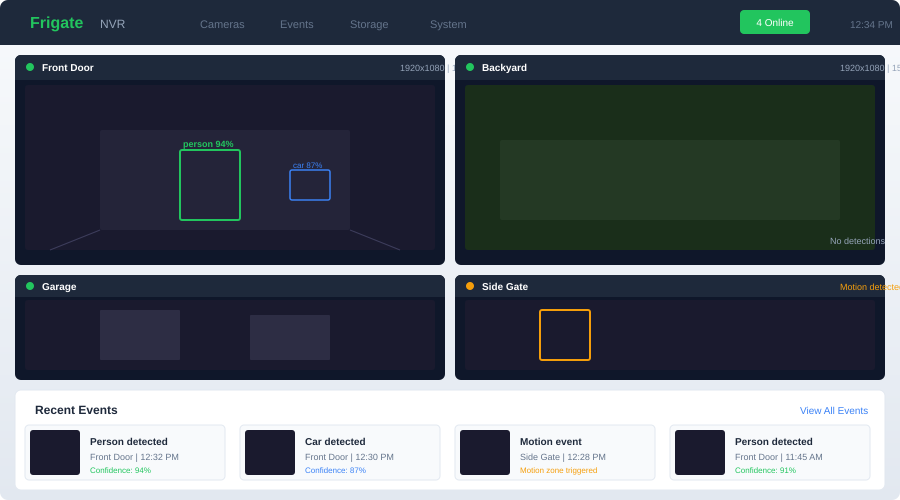
What makes Frigate different from simply recording RTSP streams with tools like Shinobi or ZoneMinder is its focus on AI-powered detection. Instead of recording hours of empty driveways, Frigate watches your camera feeds, runs object detection on every frame, and only saves clips when it spots something you care about. The result is dramatically less storage usage and footage that's actually worth reviewing.
Hardware Requirements
Frigate's hardware requirements depend on how many cameras you run and whether you use a hardware accelerator for object detection.
CPU and Memory
For the Frigate server itself, the requirements are modest:
- 1-4 cameras: 2 CPU cores, 4 GB RAM
- 5-10 cameras: 4 CPU cores, 8 GB RAM
- 10+ cameras: 6+ CPU cores, 16 GB RAM
The CPU load comes primarily from decoding video streams, not from object detection (which should be offloaded to a dedicated accelerator). Frigate uses FFmpeg for stream handling, so hardware video decoding (Intel Quick Sync, NVIDIA NVDEC) significantly reduces CPU usage.
The Coral TPU
A Google Coral TPU is the single most impactful upgrade for Frigate. It handles object detection at roughly 100 inference operations per second while consuming less than 2 watts of power. Without a Coral, Frigate falls back to CPU-based detection, which is dramatically slower and will peg your CPU at 100% with just a few cameras.
Your options:
- Coral USB Accelerator (~$35-60): Plugs into any USB 3.0 port. Easiest to set up, works with any machine.
- Coral M.2 Accelerator (~$25-35): M.2 A+E or B+M key. Better performance than USB, requires an available M.2 slot.
- Coral PCIe Accelerator (~$25-35): Single-lane PCIe card. Best option for servers with available PCIe slots.
The USB version works well for most homelabs. If you have a dedicated mini PC or server, the M.2 or PCIe versions offer slightly lower latency and more consistent performance.
GPU Acceleration
If you have an NVIDIA GPU, Frigate can use it for both video decoding (NVDEC) and object detection (TensorRT). This is overkill for most setups — a $35 Coral TPU handles detection more efficiently than a $300 GPU — but if you already have a GPU in your server for other workloads, Frigate can take advantage of it.
Intel Quick Sync Video (QSV) is valuable even without a Coral. Any Intel CPU with integrated graphics (which includes most desktop and NUC processors) can offload H.264/H.265 decoding to the iGPU, freeing up CPU cores for other tasks.
Storage
Frigate stores recordings and snapshots locally. Plan for:
- ~1 GB per camera per day with event-only recording (default)
- ~10-20 GB per camera per day with continuous recording enabled
- An SSD or NVMe drive for the Frigate database and cache (do not use spinning disks for the cache)
- A larger HDD or NAS share for long-term recording storage
Docker Compose Setup
Here is a production-ready Docker Compose configuration for Frigate with a Coral USB accelerator and Intel QSV hardware decoding:
# docker-compose.yml
services:
  frigate:
    container_name: frigate
    image: ghcr.io/blakeblackshear/frigate:stable
    restart: unless-stopped
    privileged: true
    shm_size: "256mb"
    volumes:
      - ./config:/config
      - /mnt/surveillance/frigate:/media/frigate
      - type: tmpfs
        target: /tmp/cache
        tmpfs:
          size: 1073741824  # 1 GB
    ports:
      - "5000:5000"   # Web UI
      - "8554:8554"   # RTSP restream
      - "8555:8555"   # WebRTC
      - "8555:8555/udp"
    devices:
      - /dev/bus/usb:/dev/bus/usb          # Coral USB
      - /dev/dri/renderD128:/dev/dri/renderD128  # Intel QSV
    environment:
      FRIGATE_RTSP_PASSWORD: "${FRIGATE_RTSP_PASSWORD}"
The shm_size setting is critical. Frigate uses shared memory for passing frames between FFmpeg and the detection process. If this is too small, you will get crashes with no useful error message. Start with 256 MB and increase if you have many high-resolution cameras.
The tmpfs mount for /tmp/cache keeps Frigate's working files in RAM, which reduces SSD wear and improves performance.
Camera Configuration
Frigate's configuration lives in a single YAML file. Here is an annotated example for a typical setup with two cameras:
# config/config.yml
mqtt:
  enabled: true
  host: mosquitto
  port: 1883
  user: frigate
  password: "{FRIGATE_MQTT_PASSWORD}"

detectors:
  coral:
    type: edgetpu
    device: usb

ffmpeg:
  hwaccel_args: preset-vaapi  # Intel QSV decoding

objects:
  track:
    - person
    - car
    - dog
    - cat
  filters:
    person:
      min_score: 0.6
      threshold: 0.7

record:
  enabled: true
  retain:
    days: 14
    mode: motion
  events:
    retain:
      default: 30
      mode: active_objects

snapshots:
  enabled: true
  retain:
    default: 30

cameras:
  front_door:
    ffmpeg:
      inputs:
        - path: rtsp://admin:[email protected]:554/cam/realmonitor?channel=1&subtype=0
          roles:
            - record
        - path: rtsp://admin:[email protected]:554/cam/realmonitor?channel=1&subtype=1
          roles:
            - detect
    detect:
      width: 1280
      height: 720
      fps: 5

  backyard:
    ffmpeg:
      inputs:
        - path: rtsp://admin:[email protected]:554/stream1
          roles:
            - record
        - path: rtsp://admin:[email protected]:554/stream2
          roles:
            - detect
    detect:
      width: 1280
      height: 720
      fps: 5
Dual Stream Configuration
The configuration above uses dual streams for each camera, and this is intentional. Most IP cameras offer a high-resolution main stream and a lower-resolution sub-stream. Frigate records the main stream (typically 4K or 1080p) for playback quality, but runs object detection on the sub-stream (720p or lower) to reduce processing load.
This is one of Frigate's key architectural decisions. Object detection does not need 4K resolution to identify a person — 720p at 5 FPS is more than enough. Running detection on the sub-stream means your Coral TPU can handle more cameras, and your CPU spends less time decoding video.
RTSP Stream URLs
Every camera brand has different RTSP URL formats. Here are the most common ones:
| Brand | Main Stream | Sub Stream |
|---|---|---|
| Reolink | rtsp://admin:pass@IP:554/h264Preview_01_main |
rtsp://admin:pass@IP:554/h264Preview_01_sub |
| Dahua | rtsp://admin:pass@IP:554/cam/realmonitor?channel=1&subtype=0 |
rtsp://admin:pass@IP:554/cam/realmonitor?channel=1&subtype=1 |
| Hikvision | rtsp://admin:pass@IP:554/Streaming/Channels/101 |
rtsp://admin:pass@IP:554/Streaming/Channels/102 |
| Amcrest | rtsp://admin:pass@IP:554/cam/realmonitor?channel=1&subtype=0 |
rtsp://admin:pass@IP:554/cam/realmonitor?channel=1&subtype=1 |
If you are unsure of your camera's RTSP URL, check the manufacturer's documentation or use a tool like ONVIF Device Manager to discover it.
Want more security guides? Get guides like this in your inbox — HomeLab Starter delivers one free deep-dive every week.
Zones and Masks
Raw object detection will trigger on everything — the mail carrier walking past your house, cars driving down the street, your neighbor's cat crossing the frame. Zones and masks let you focus detection on areas you actually care about.
Motion Masks
Motion masks tell Frigate to completely ignore motion in certain areas of the frame. Use these for:
- Trees and bushes that sway in the wind
- Roads visible in the background
- Timestamp overlays from the camera
cameras:
  front_door:
    motion:
      mask:
        - 0,0,300,0,300,100,0,100  # Top-left corner (timestamp overlay)
        - 640,0,1280,0,1280,200,640,200  # Street in background
Coordinates are specified as polygon points (x,y pairs) at the detection resolution.
Zones
Zones define named regions within the camera's field of view. You can apply different rules to each zone:
cameras:
  front_door:
    zones:
      porch:
        coordinates: 100,400,500,400,500,720,100,720
        objects:
          - person
      driveway:
        coordinates: 500,300,1280,300,1280,720,500,720
        objects:
          - person
          - car
Zones are powerful when combined with Home Assistant automations. You can create automations that only trigger when a person enters a specific zone — like sending a notification when someone is on the porch but ignoring people on the sidewalk.
Home Assistant Integration
Frigate integrates with Home Assistant through an official HACS integration. The integration creates entities for every camera and detection event, giving you:
- Camera entities: Live view and recorded footage playback
- Binary sensors: Motion and object detection per camera and per zone
- Sensors: Object counts per camera
- Event entities: Individual detection events with snapshots and clips
Installation
- Install HACS if you haven't already
- Add the Frigate integration through HACS
- In Home Assistant, go to Settings > Devices & Services > Add Integration > Frigate
- Enter your Frigate server URL (e.g.,
http://frigate:5000)
Automation Examples
Send a notification with a snapshot when a person is detected at the front door:
automation:
  - alias: "Front door person alert"
    trigger:
      - platform: state
        entity_id: binary_sensor.front_door_person_occupancy
        to: "on"
    action:
      - service: notify.mobile_app_phone
        data:
          title: "Person at front door"
          message: "Someone is at the front door"
          data:
            image: "/api/frigate/notifications/{{trigger.to_state.attributes.event_id}}/snapshot.jpg"
Turn on porch lights when motion is detected after sunset:
automation:
  - alias: "Porch lights on motion"
    trigger:
      - platform: state
        entity_id: binary_sensor.front_door_motion
        to: "on"
    condition:
      - condition: sun
        after: sunset
    action:
      - service: light.turn_on
        target:
          entity_id: light.porch
      - delay: "00:05:00"
      - service: light.turn_off
        target:
          entity_id: light.porch
Recording Storage and Retention
Frigate's recording system has two layers: continuous recordings and event clips.
Continuous recording captures everything but only retains footage based on activity level. The retain.mode: motion setting keeps 14 days of footage where motion was detected and discards quiet periods after a shorter window.
Event recordings capture the full clip around each detection event. The retain.mode: active_objects setting keeps event clips for 30 days.
For storage planning with 4 cameras:
- Event-only recording: ~4-8 GB/day, ~120-240 GB/month
- Continuous with motion retention: ~20-40 GB/day, ~600 GB-1.2 TB/month
A dedicated 2 TB drive handles most setups comfortably. Point Frigate's media directory at a NAS share if you want more capacity without local storage constraints.
Performance Tuning
A few settings make a meaningful difference in Frigate's resource usage:
Reduce detect FPS: The default 5 FPS is fine for most cameras. Going higher rarely catches events that 5 FPS misses, but it significantly increases CPU and Coral load.
Use hardware decoding: The preset-vaapi FFmpeg preset (Intel) or preset-nvidia (NVIDIA) offloads video decoding from the CPU. This alone can cut CPU usage by 50% or more.
Set appropriate detect resolution: 720p is the sweet spot for detection accuracy vs. processing cost. Going to 1080p for detection provides minimal accuracy improvement at double the processing cost.
Tune motion detection th:threshold: If you get too many false positives from swaying trees or shadows, increase the motion threshold in the camera config:
cameras:
  front_door:
    motion:
      threshold: 30  # Default is 25, higher = less sensitive
      contour_area: 30  # Minimum motion area, higher = ignore small movements
Wrapping Up
Frigate turns commodity IP cameras into a smart security system without monthly subscriptions or cloud dependencies. The Coral TPU makes real-time object detection practical even on modest hardware, and the Home Assistant integration turns detection events into automations, notifications, and a unified security dashboard. Start with one or two cameras, get the detection dialed in with zones and masks, and expand from there.