Wake-on-LAN for Home Labs: Start Servers Remotely
Not every home lab server needs to run 24/7. If you have machines that only run specific workloads — a gaming server, a heavy compute node, a NAS that's only needed during backups — Wake-on-LAN (WoL) lets you power them on remotely when needed and shut them down when they're idle.
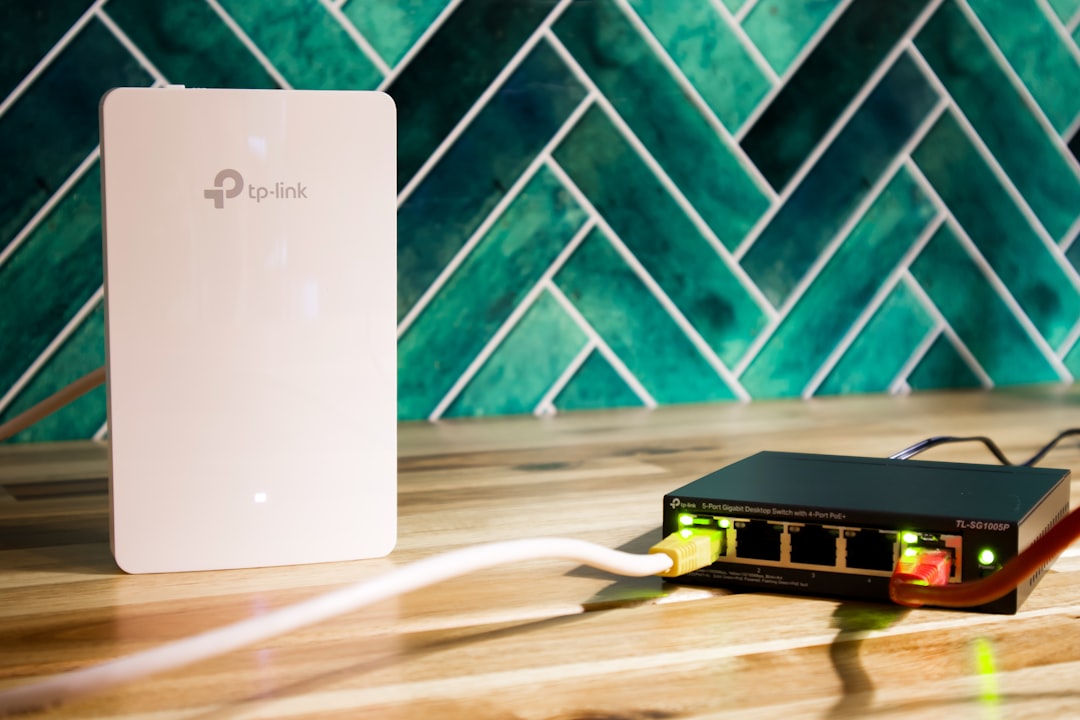
Photo by User_Pascal on Unsplash
WoL works by sending a special network packet (called a "magic packet") to a powered-off machine's network card. The NIC stays powered in a low-power state even when the machine is off, listening for this packet. When it arrives, the NIC signals the motherboard to power on.

How It Works
A magic packet is a broadcast frame containing the target machine's MAC address repeated 16 times. The NIC recognizes this pattern and triggers a power-on. The packet can be sent from anywhere on the local network — another server, your phone, or even across the internet through a VPN.
Requirements:
- Hardware support: The motherboard and NIC must support WoL. Almost all modern desktop and server hardware does.
- BIOS/UEFI setting: WoL must be enabled in the BIOS. It's often disabled by default.
- OS configuration: The operating system must not disable WoL on shutdown.
- Network connectivity: The machine must be connected via Ethernet. Wi-Fi WoL exists on some hardware but is unreliable.
Step 1: Enable in BIOS/UEFI
Reboot into BIOS/UEFI (usually by pressing F2, DEL, or F12 during boot) and look for one of these settings:
- Wake on LAN (most common label)
- Power On By PCI-E/PCI
- Wake on Magic Packet
- Remote Wake Up
- Network Boot
The exact location varies by manufacturer:
- Dell: Power Management → Wake on LAN
- HP: Advanced → Power Management Options → Wake on LAN
- Lenovo: Power → Wake on LAN
- ASRock/ASUS: Advanced → APM Configuration → Power On By PCI-E
Enable the setting and save. Some BIOS variants offer "WoL from S4/S5" — enable this for wake from full shutdown (S5) and hibernate (S4).
Step 2: Configure Linux
Even if WoL is enabled in the BIOS, Linux may disable it during normal operation. Check and configure using ethtool:
# Install ethtool
sudo apt install ethtool   # Debian/Ubuntu
sudo dnf install ethtool   # Fedora

# Check current WoL status
sudo ethtool eth0 | grep Wake
You'll see something like:
Supports Wake-on: pumbg
Wake-on: d
The letters mean:
p— wake on PHY activityu— wake on unicastm— wake on multicastb— wake on broadcastg— wake on magic packet (this is the one we want)d— disabled
If Wake-on shows d, enable it:
sudo ethtool -s eth0 wol g
Make It Persistent
The ethtool command only lasts until the next reboot. To make it persistent, create a systemd service:
sudo tee /etc/systemd/system/wol.service << 'EOF'
[Unit]
Description=Enable Wake-on-LAN
After=network.target

[Service]
Type=oneshot
ExecStart=/usr/sbin/ethtool -s eth0 wol g

[Install]
WantedBy=multi-user.target
EOF

sudo systemctl enable wol.service
Or if your system uses NetworkManager, set it per-connection:
nmcli connection modify "Wired connection 1" 802-3-ethernet.wake-on-lan magic
This persists across reboots without needing a separate service.
Want more networking guides? Get guides like this in your inbox — HomeLab Starter delivers one free deep-dive every week.
Step 3: Get the MAC Address
You need the target machine's MAC address to send the magic packet. While the machine is still on:
ip link show eth0
Look for the link/ether line:
link/ether aa:bb:cc:dd:ee:ff brd ff:ff:ff:ff:ff:ff
Write down aa:bb:cc:dd:ee:ff. You'll need this on the machine sending the wake packet.
Step 4: Send Magic Packets
From Linux
Install wakeonlan or etherwake:
# Using wakeonlan
sudo apt install wakeonlan
wakeonlan aa:bb:cc:dd:ee:ff

# Using etherwake
sudo apt install etherwake
sudo etherwake aa:bb:cc:dd:ee:ff
From a Script
A simple bash function you can add to your always-on server:
wake_server() {
    local mac="$1"
    wakeonlan "$mac"
    echo "Magic packet sent to $mac"
}

# Usage
wake_server "aa:bb:cc:dd:ee:ff"
From Your Phone
- Android: "Wake On Lan" by Mike Webb (free on F-Droid and Play Store)
- iOS: "Mocha WOL" or "RemoteBoot WOL"
Enter the MAC address and your network's broadcast address (usually 192.168.1.255).
From Your Dashboard
If you use Homepage or Homarr, you can add WoL buttons that send magic packets to specific machines. This is a nice way to power on servers without leaving your dashboard.
Wake-on-LAN Over the Internet
WoL packets are broadcast frames that don't cross network boundaries by default. To wake a machine remotely (outside your LAN), you have a few options:
Option 1: VPN
If you have a VPN into your home network (WireGuard, Tailscale), connect to the VPN first, then send the magic packet as if you were on the local network.
Option 2: Port Forwarding
Forward UDP port 9 (the WoL port) to your network's broadcast address on your router. Then send the magic packet to your public IP:
wakeonlan -i your.public.ip -p 9 aa:bb:cc:dd:ee:ff
This has security implications — anyone who knows your public IP and the MAC address can wake your machine.
Option 3: Always-On Relay
Keep a low-power machine running (a Raspberry Pi, for example) that accepts SSH connections and can send WoL packets locally:
ssh [email protected] "wakeonlan aa:bb:cc:dd:ee:ff"
This is the most secure approach — the Pi acts as a relay behind your normal SSH authentication.
Automating Wake and Sleep
Scheduled Wake
Use a cron job on an always-on machine to wake another server at specific times:
# Wake the NAS at 2 AM for nightly backups
0 2 * * * wakeonlan aa:bb:cc:dd:ee:ff
Automatic Shutdown
On the server that gets woken up, schedule a shutdown after it finishes its work:
# In your backup script
#!/bin/bash
restic backup /data/important
curl -d "Backup complete, shutting down" ntfy.home.lab/backups
sudo shutdown -h +5 "Shutting down after backup"
Wake on Demand
Some routers and NAS devices support "wake on access" — they send a WoL packet when someone tries to access a sleeping machine's IP. TrueNAS and Synology both support this for SMB shares.
Troubleshooting
WoL doesn't work after a clean shutdown but works after a reboot: This usually means the OS is disabling WoL during shutdown. Make sure the NetworkManager or systemd configuration is set correctly, and check that the ethtool setting persists to shutdown, not just boot.
WoL works sometimes but not always: Check that your switch/router doesn't have "green ethernet" or power-saving features that disable ports when they detect the connected device is powered off. Enterprise switches sometimes do this.
WoL stopped working after a kernel update: The kernel may have changed the default WoL behavior for your NIC driver. Re-run ethtool -s eth0 wol g and verify your persistence method still works.
Can't wake from S5 (full shutdown): Not all hardware supports WoL from full shutdown. Some only support it from S3 (sleep) or S4 (hibernate). Check your BIOS for S4/S5 wake options.
WoL is one of those home lab features that seems minor until you set it up. Being able to leave servers powered off and wake them on demand saves electricity, reduces noise, and extends hardware life — while keeping everything available when you need it.