Homelab Disaster Recovery: Planning, Testing, and Automation
Everyone backs up their homelab. Almost nobody tests their backups. And very few people have an actual plan for what to do when something goes seriously wrong.
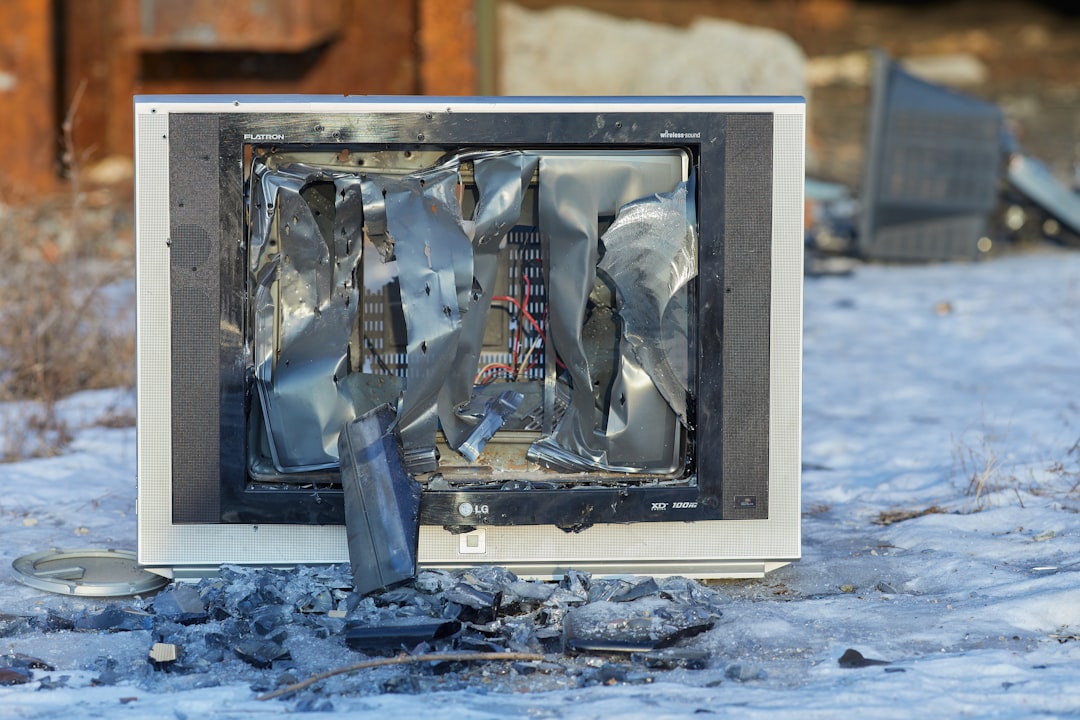
Photo by Олег Мороз on Unsplash
I learned this the hard way when a power supply failure took out two drives simultaneously in my NAS. I had backups — sort of. The Proxmox VMs were backed up to the NAS (which was dead). The NAS data was backed up to a cloud provider (which took 3 days to download at my ISP's speed). And I had no documentation on how anything was configured, so rebuilding from scratch meant piecing things together from memory and scattered config files.
That experience is why this guide exists. Disaster recovery for a homelab isn't about buying expensive hardware or enterprise software. It's about having a plan, testing it, and knowing exactly what to do when things go wrong.

What Disaster Recovery Means for a Homelab
In enterprise IT, disaster recovery (DR) is a formal discipline with dedicated infrastructure, redundant sites, and contractual uptime guarantees. In a homelab, it's more personal: how quickly can you get back to a working state when something breaks?
"Something breaks" can mean a lot of things:
| Disaster | Severity | Examples |
|---|---|---|
| Accidental deletion | Low | Deleted a VM, dropped a database table, rm -rf'd the wrong directory |
| Single disk failure | Low-Medium | One drive in a RAID/ZFS array fails |
| Service corruption | Medium | Failed update breaks a service, config file gets mangled |
| Full server failure | Medium-High | Motherboard dies, PSU takes out components |
| Ransomware/malware | High | Everything accessible on the network gets encrypted |
| Site disaster | Critical | Fire, flood, theft, lightning strike — all local equipment destroyed |
Your DR plan needs to address all of these, not just the easy ones.
RTO and RPO: Scaled Down for Homelabs
Enterprise DR plans revolve around two metrics:
- RTO (Recovery Time Objective): How long until you're back up and running?
- RPO (Recovery Point Objective): How much data can you afford to lose?
For a homelab, these translate to practical questions:
Setting Your RTO
| Service | RTO | What This Means |
|---|---|---|
| Home automation | 1 hour | Lights and climate should recover quickly |
| Media server | 24 hours | Nobody's going to die without Plex for a day |
| Monitoring | 4 hours | You want to know if other things are broken |
| Personal files/photos | 48 hours | Important but not urgent to restore |
| Development VMs | 1 week | Annoying but you can live without them |
Setting Your RPO
| Data Type | RPO | Backup Frequency |
|---|---|---|
| Photos/personal files | 0 (no loss acceptable) | Real-time sync + daily backup |
| VM configurations | 24 hours | Daily backups |
| Service databases | 24 hours | Daily database dumps |
| Media library metadata | 1 week | Weekly backup |
| Media files (movies, etc.) | Infinite (re-downloadable) | No backup needed |
Be honest about what actually matters. Your Plex library metadata? That took hours to curate. The media files themselves? They can be re-obtained. Your family photos? Irreplaceable. Prioritize accordingly.
The DR Documentation Template
Your disaster recovery plan should be a living document. Here's a template that works:
Part 1: Infrastructure Inventory
# Homelab Infrastructure Inventory
Last updated: 2026-02-09

## Hardware

### Server 1: proxmox-01
- Model: Dell OptiPlex 7070
- CPU: i7-9700, 8 cores
- RAM: 64GB DDR4
- Storage: 500GB NVMe (boot), 2× 2TB SSD (VM storage, ZFS mirror)
- Network: 1G onboard, 10G Mellanox ConnectX-3
- IPMI/iDRAC: No (consumer hardware)
- Purchase date: 2025-06-15
- Serial: XXXXXXX

### NAS: truenas-01
- Model: Custom build
- CPU: i5-10400
- RAM: 32GB ECC DDR4
- Storage: 4× 8TB HDD (ZFS RAIDZ1), 256GB NVMe (SLOG)
- Network: 1G onboard, 10G Intel X520-DA2
- Purchase date: 2025-03-20

### Network
- Router: pfSense (Protectli Vault FW4B)
- Switch: Ubiquiti USW-Pro-24-PoE
- APs: 2× UniFi U6-Lite
- UPS: CyberPower CP1500PFCLCD (900W, ~30 min runtime)

## Network Configuration

### VLANs
| VLAN | Subnet | Gateway | DHCP Range | Purpose |
|------|--------|---------|------------|---------|
| 10 | 10.0.10.0/24 | 10.0.10.1 | .100-.200 | Management |
| 20 | 10.0.20.0/24 | 10.0.20.1 | .100-.200 | Servers |
| 30 | 10.0.30.0/24 | 10.0.30.1 | None | Storage |
| 40 | 10.0.40.0/24 | 10.0.40.1 | .100-.250 | IoT |

### Static IPs
| IP | Hostname | Service | VLAN |
|----|----------|---------|------|
| 10.0.10.1 | gateway | pfSense | 10 |
| 10.0.10.2 | switch | USW-Pro-24 | 10 |
| 10.0.20.10 | proxmox-01 | Proxmox VE | 20 |
| 10.0.20.20 | docker-01 | Docker host | 20 |
| 10.0.30.10 | truenas-01 | TrueNAS | 30 |

### DNS Records
| Record | Type | Value |
|--------|------|-------|
| *.lab.example.com | A | 10.0.20.20 |
| proxmox.lab.example.com | A | 10.0.20.10 |
| nas.lab.example.com | A | 10.0.30.10 |

## Services Inventory

| Service | Host | Port | Data Location | Backup? |
|---------|------|------|---------------|---------|
| Proxmox VE | proxmox-01 | 8006 | Local ZFS | Yes — daily to NAS |
| Plex | docker-01 (VM 102) | 32400 | /opt/plex | Yes — config only |
| Home Assistant | docker-01 (VM 103) | 8123 | /opt/hass | Yes — daily snapshots |
| Grafana | docker-01 (VM 104) | 3000 | PostgreSQL | Yes — DB dump daily |
| Pi-hole | docker-01 (VM 105) | 80 | /etc/pihole | Yes — teleporter backup |
Part 2: Backup Inventory
# Backup Inventory

## Backup Destinations
| Destination | Type | Capacity | Encryption | Location |
|-------------|------|----------|------------|----------|
| TrueNAS (local) | NFS share | 10TB usable | No | Same room |
| Backblaze B2 | Cloud | Unlimited | Yes (restic) | US datacenter |
| USB drive | Offline | 4TB | Yes (LUKS) | Fireproof safe |

## Backup Jobs
| What | Tool | Destination | Schedule | Retention | Verified? |
|------|------|-------------|----------|-----------|-----------|
| Proxmox VMs | vzdump | TrueNAS | Daily 2AM | 7 daily, 4 weekly | Last tested: 2026-01-15 |
| VM configs | vzdump | Backblaze B2 | Daily 3AM | 30 days | Last tested: 2026-01-15 |
| NAS data | restic | Backblaze B2 | Daily 4AM | 7 daily, 4 weekly, 6 monthly | Last tested: 2026-02-01 |
| Photos | rclone sync | Backblaze B2 | Hourly | Mirror | Last tested: 2026-02-01 |
| Docker volumes | tar + restic | TrueNAS + B2 | Daily 2:30AM | 7 daily | Last tested: 2026-01-20 |
| pfSense config | Auto backup | TrueNAS | On change | 30 versions | Last tested: 2026-01-10 |
| Pi-hole | teleporter | TrueNAS | Weekly | 4 weekly | Last tested: 2026-01-28 |
Part 3: Recovery Procedures
This is the most important part. Write step-by-step instructions that you can follow under stress, when you're tired, and when you can't remember how anything works.
# Recovery Procedures

## Procedure 1: Single Disk Failure (NAS)

### Symptoms
- TrueNAS alerts showing degraded pool
- One drive shows SMART errors or is FAULTED

### Steps
1. Log into TrueNAS web UI (10.0.30.10)
2. Go to Storage > Pools > Status
3. Identify the failed drive (note the serial number and bay)
4. Order a replacement drive (same size or larger):
   - Current drives: Seagate Exos X18 8TB (ST8000NM000A)
   - Amazon link: [saved in bookmarks]
5. When replacement arrives:
   a. Power down the NAS (if hot-swap not supported)
   b. Replace the drive in the correct bay
   c. Power on
   d. Go to Storage > Pools > Status
   e. Click the gear next to the degraded vdev
   f. Select "Replace" and choose the new drive
   g. Wait for resilver to complete (monitor with `zpool status`)
6. Verify pool is healthy: `zpool status` shows no errors

### Time estimate: 4-24 hours (mostly resilver time)
### Data at risk: None if pool remains operational during resilver

---

## Procedure 2: Full Server Failure (proxmox-01)

### Symptoms
- Server won't boot, hardware failure

### Steps
1. Assess the failure:
   - PSU failure? Replace PSU ($30-50, Amazon next-day)
   - RAM failure? Test sticks individually, replace bad one
   - Motherboard? Replace entire system (see spare parts list)
   - NVMe boot drive? Install Proxmox on new drive, import ZFS pool

2. If boot drive failed (ZFS data intact):
   a. Install new NVMe drive
   b. Boot Proxmox installer from USB (ISO on NAS at /mnt/pool/isos/)
   c. Install Proxmox, set same IP (10.0.20.10)
   d. Import ZFS pool: `zpool import data`
   e. VMs should appear automatically

3. If ZFS data lost (restore from backup):
   a. Install Proxmox on new hardware
   b. Configure networking (VLAN 20, IP 10.0.20.10)
   c. Mount NAS backup share: `mount -t nfs 10.0.30.10:/mnt/pool/backups /mnt/backup`
   d. Restore VMs:
      ```
      qmrestore /mnt/backup/vzdump/vzdump-qemu-102-*.vma.zst 102
      qmrestore /mnt/backup/vzdump/vzdump-qemu-103-*.vma.zst 103
      qmrestore /mnt/backup/vzdump/vzdump-qemu-104-*.vma.zst 104
      ```
   e. Start VMs and verify services

### Time estimate: 2-8 hours (depending on hardware availability)
### Data at risk: Up to 24 hours of changes (daily backup interval)

---

## Procedure 3: Ransomware / Compromised Network

### Symptoms
- Files encrypted with ransom note
- Unusual network traffic
- Services behaving unexpectedly

### Steps
1. IMMEDIATELY disconnect everything from the internet
   - Unplug WAN cable from router
   - Do NOT power off infected machines yet (preserve evidence)

2. Assess the damage:
   - Which machines are affected?
   - Are backups accessible? (Check NAS, check cloud)
   - When did the infection start? (Check logs)

3. If NAS backups are compromised:
   - Cloud backups (Backblaze B2) should be safe (immutable retention)
   - USB offline backup should be safe (not network-accessible)

4. Recovery:
   a. Rebuild network from scratch (new pfSense install)
   b. Wipe and reinstall all affected machines
   c. Restore from the most recent clean backup
   d. Change ALL passwords
   e. Review how the compromise happened

### Time estimate: 1-3 days
### Data at risk: Depends on when last clean backup was taken

---

## Procedure 4: Site Disaster (Fire/Flood/Theft)

### Steps
1. Safety first — do not re-enter a damaged building
2. File insurance claim if applicable
3. Recovery from offsite backups:
   a. Get new hardware (or use any available computer temporarily)
   b. Install restic: `apt install restic`
   c. Configure Backblaze B2 access:
      ```
      export B2_ACCOUNT_ID="your-account-id"
      export B2_ACCOUNT_KEY="your-account-key"
      export RESTIC_REPOSITORY="b2:your-bucket-name"
      export RESTIC_PASSWORD="your-restic-password"
      ```
   d. List available snapshots: `restic snapshots`
   e. Restore critical data first:
      ```
      restic restore latest --target /restore --include "/photos"
      restic restore latest --target /restore --include "/documents"
      ```
   f. Rebuild infrastructure when new hardware arrives

### Time estimate: Days to weeks
### Data at risk: Depends on offsite backup frequency
Want more backup guides? Get guides like this in your inbox — HomeLab Starter delivers one free deep-dive every week.
Backup Verification: The Most Neglected Step
Having backups is not the same as having working backups. You need to regularly verify that:
- Backups are actually running (not silently failing)
- Backup files are not corrupted
- You can actually restore from them
- The restored data is complete and usable
Automated Backup Verification Script
#!/bin/bash
# verify-backups.sh — Automated backup verification
set -euo pipefail

LOG_FILE="/var/log/backup-verify.log"
NTFY_TOPIC="homelab-alerts"
FAILURES=0

log() {
  echo "[$(date '+%Y-%m-%d %H:%M:%S')] $1" | tee -a "$LOG_FILE"
}

alert() {
  log "ALERT: $1"
  curl -s -o /dev/null "https://ntfy.sh/${NTFY_TOPIC}" \
    -H "Title: Backup Verification Failed" \
    -H "Priority: high" \
    -d "$1"
}

# Check 1: Verify Proxmox backups exist and are recent
log "Checking Proxmox backups..."
BACKUP_DIR="/mnt/backup/vzdump"
for VMID in 102 103 104 105; do
  LATEST=$(find "$BACKUP_DIR" -name "vzdump-qemu-${VMID}-*.vma.zst" -mtime -2 | sort -r | head -1)
  if [ -z "$LATEST" ]; then
    alert "No recent backup found for VM $VMID (older than 2 days)"
    FAILURES=$((FAILURES + 1))
  else
    SIZE=$(stat -c %s "$LATEST")
    if [ "$SIZE" -lt 1048576 ]; then  # Less than 1MB is suspicious
      alert "Backup for VM $VMID is suspiciously small: $(numfmt --to=iec $SIZE)"
      FAILURES=$((FAILURES + 1))
    else
      log "  VM $VMID: OK ($(numfmt --to=iec $SIZE), $(stat -c %y "$LATEST" | cut -d' ' -f1))"
    fi
  fi
done

# Check 2: Verify restic repository integrity
log "Checking restic repository integrity..."
export RESTIC_REPOSITORY="b2:your-bucket-name"
export RESTIC_PASSWORD_FILE="/root/.restic-password"
export B2_ACCOUNT_ID="your-account-id"
export B2_ACCOUNT_KEY="your-account-key"

if ! restic check --read-data-subset=5% 2>&1 | tee -a "$LOG_FILE"; then
  alert "Restic repository integrity check failed"
  FAILURES=$((FAILURES + 1))
else
  log "  Restic repository: OK"
fi

# Check 3: Verify latest restic snapshot is recent
LATEST_SNAP=$(restic snapshots --latest 1 --json | jq -r '.[0].time' | cut -dT -f1)
SNAP_AGE=$(( ($(date +%s) - $(date -d "$LATEST_SNAP" +%s)) / 86400 ))
if [ "$SNAP_AGE" -gt 2 ]; then
  alert "Latest restic snapshot is $SNAP_AGE days old"
  FAILURES=$((FAILURES + 1))
else
  log "  Latest snapshot: $LATEST_SNAP ($SNAP_AGE days old)"
fi

# Check 4: Test restore of a small file
log "Testing restore of a small file..."
RESTORE_DIR=$(mktemp -d)
if restic restore latest --target "$RESTORE_DIR" --include "/test-restore-canary.txt" 2>&1 | tee -a "$LOG_FILE"; then
  if [ -f "$RESTORE_DIR/test-restore-canary.txt" ]; then
    EXPECTED_HASH="abc123..."  # Known hash of the canary file
    ACTUAL_HASH=$(sha256sum "$RESTORE_DIR/test-restore-canary.txt" | awk '{print $1}')
    if [ "$EXPECTED_HASH" = "$ACTUAL_HASH" ]; then
      log "  Restore test: OK (canary file matches)"
    else
      alert "Restore test: canary file hash mismatch!"
      FAILURES=$((FAILURES + 1))
    fi
  else
    alert "Restore test: canary file not found in restore"
    FAILURES=$((FAILURES + 1))
  fi
else
  alert "Restore test: restic restore command failed"
  FAILURES=$((FAILURES + 1))
fi
rm -rf "$RESTORE_DIR"

# Check 5: Verify database backups
log "Checking database backups..."
DB_BACKUP_DIR="/mnt/backup/databases"
for DB in grafana homeassistant; do
  LATEST_DB=$(find "$DB_BACKUP_DIR" -name "${DB}-*.sql.gz" -mtime -2 | sort -r | head -1)
  if [ -z "$LATEST_DB" ]; then
    alert "No recent database backup for $DB"
    FAILURES=$((FAILURES + 1))
  else
    # Verify the gzip file is valid
    if gzip -t "$LATEST_DB" 2>/dev/null; then
      log "  Database $DB: OK ($(numfmt --to=iec $(stat -c %s "$LATEST_DB")))"
    else
      alert "Database backup for $DB is corrupted (gzip test failed)"
      FAILURES=$((FAILURES + 1))
    fi
  fi
done

# Summary
log "============================="
if [ "$FAILURES" -gt 0 ]; then
  log "VERIFICATION FAILED: $FAILURES issues found"
  alert "Backup verification completed with $FAILURES failures"
  exit 1
else
  log "ALL CHECKS PASSED"
  exit 0
fi
Schedule Verification
# /etc/systemd/system/backup-verify.timer
[Unit]
Description=Weekly backup verification

[Timer]
OnCalendar=Sun *-*-* 06:00:00
Persistent=true

[Install]
WantedBy=timers.target
# /etc/systemd/system/backup-verify.service
[Unit]
Description=Verify backup integrity
After=network-online.target

[Service]
Type=oneshot
ExecStart=/usr/local/bin/verify-backups.sh
StandardOutput=journal
StandardError=journal
sudo systemctl daemon-reload
sudo systemctl enable --now backup-verify.timer
Automated DR Testing
Verification tells you the backup files are intact. DR testing tells you the entire recovery process works. There's a difference.
Monthly VM Restore Test
This script automatically restores a VM from backup to a temporary location, verifies it boots, and cleans up:
#!/bin/bash
# dr-test-vm-restore.sh — Test VM restoration from backup
set -euo pipefail

VMID_TO_TEST=102
TEMP_VMID=9999
BACKUP_DIR="/mnt/backup/vzdump"
LOG_FILE="/var/log/dr-test.log"

log() {
  echo "[$(date '+%Y-%m-%d %H:%M:%S')] $1" | tee -a "$LOG_FILE"
}

cleanup() {
  log "Cleaning up test VM $TEMP_VMID..."
  qm stop $TEMP_VMID 2>/dev/null || true
  sleep 5
  qm destroy $TEMP_VMID --purge 2>/dev/null || true
  log "Cleanup complete."
}

# Ensure cleanup runs on exit
trap cleanup EXIT

# Find the latest backup
LATEST_BACKUP=$(find "$BACKUP_DIR" -name "vzdump-qemu-${VMID_TO_TEST}-*.vma.zst" | sort -r | head -1)
if [ -z "$LATEST_BACKUP" ]; then
  log "ERROR: No backup found for VM $VMID_TO_TEST"
  exit 1
fi
log "Testing restore from: $LATEST_BACKUP"

# Restore to a temporary VM ID
log "Restoring backup to temporary VM $TEMP_VMID..."
qmrestore "$LATEST_BACKUP" $TEMP_VMID --storage local-lvm 2>&1 | tee -a "$LOG_FILE"

# Disconnect network to prevent IP conflicts
log "Disconnecting network on test VM..."
qm set $TEMP_VMID --net0 none

# Start the VM
log "Starting test VM..."
qm start $TEMP_VMID

# Wait for the VM to boot (give it 2 minutes)
log "Waiting 120 seconds for VM to boot..."
sleep 120

# Check if the VM is running
STATUS=$(qm status $TEMP_VMID | awk '{print $2}')
if [ "$STATUS" = "running" ]; then
  log "SUCCESS: VM $TEMP_VMID is running after restore"

  # Try to get the QEMU guest agent status
  if qm agent $TEMP_VMID ping 2>/dev/null; then
    log "SUCCESS: QEMU guest agent is responding"

    # Get some basic info from the restored VM
    HOSTNAME=$(qm agent $TEMP_VMID exec -- hostname 2>/dev/null | jq -r '.["out-data"]' || echo "unknown")
    UPTIME=$(qm agent $TEMP_VMID exec -- uptime 2>/dev/null | jq -r '.["out-data"]' || echo "unknown")
    log "  Hostname: $HOSTNAME"
    log "  Uptime: $UPTIME"
  else
    log "WARNING: QEMU guest agent not responding (VM may still be functional)"
  fi
else
  log "FAILURE: VM $TEMP_VMID did not start properly (status: $STATUS)"
  exit 1
fi

log "DR test completed successfully for VM $VMID_TO_TEST"
# cleanup runs via trap
Quarterly Full DR Drill
Once a quarter, do a full manual DR test. Pick a random service and pretend it's completely gone. Time yourself:
# DR Drill Log

## Date: 2026-02-09
## Scenario: Docker host (VM 102) completely lost
## Objective: Restore all services on VM 102 from backup

### Timeline
- 10:00 — Started drill. Took note of current state (services running, users connected)
- 10:02 — Shut down VM 102 to simulate failure
- 10:05 — Located backup on NAS (/mnt/backup/vzdump/vzdump-qemu-102-20260208.vma.zst)
- 10:08 — Started restore: `qmrestore /mnt/backup/vzdump/vzdump-qemu-102-*.vma.zst 102`
- 10:22 — Restore complete (14 minutes for 45GB compressed backup)
- 10:23 — Started VM, waiting for boot
- 10:25 — VM booted, SSH accessible
- 10:26 — Checking services: Plex running, Grafana running, Pi-hole running
- 10:28 — All services verified functional
- 10:30 — Drill complete

### Results
- Total RTO: 30 minutes (target: 2 hours) — PASS
- Data loss: ~18 hours (backup was from previous night) — within 24hr RPO — PASS

### Issues Found
- The backup was 18 hours old. If this were a real failure at 10 AM, we'd lose
  everything since last night's 4 AM backup. Consider more frequent backups
  for this VM, or adding a midday snapshot.
- Restore command path was hard to remember. Added it to the wiki.

### Action Items
- [ ] Add 12-hour snapshot for VM 102
- [ ] Update recovery procedure with exact restore command
Recovery Scenarios in Detail
Scenario 1: Accidental Deletion
You ran rm -rf /opt/important-service/ inside a VM. Oops.
Recovery options (fastest to slowest):
ZFS/Btrfs snapshots — If the VM disk is on ZFS or Btrfs, check for recent snapshots:
# On the Proxmox host
zfs list -t snapshot -r rpool/data/vm-102-disk-0
# If a recent snapshot exists:
# Option A: Clone the snapshot and mount it to copy files
zfs clone rpool/data/vm-102-disk-0@auto-daily-20260209 rpool/recover
mount -t zfs rpool/recover /mnt/recover
# Copy the files you need back into the VM
VM snapshot rollback — If you have a VM-level snapshot:
qm rollback 102 last-known-goodFile-level restore from restic/borg:
# List snapshots
restic snapshots
# Restore specific directory
restic restore latest --target /tmp/restore --include "/opt/important-service"
# Copy restored files back to the VM
scp -r /tmp/restore/opt/important-service root@vm102:/opt/
Full VM restore — If nothing else works:
qm stop 102
qmrestore /mnt/backup/vzdump/vzdump-qemu-102-latest.vma.zst 102 --force
qm start 102
Scenario 2: Disk Failure in ZFS Pool
A drive in your ZFS mirror or RAIDZ fails.
# Check pool status
zpool status

# Example output for a degraded mirror:
#   NAME                                  STATE     READ WRITE CKSUM
#   data                                  DEGRADED     0     0     0
#     mirror-0                            DEGRADED     0     0     0
#       sda                               ONLINE       0     0     0
#       sdb                               FAULTED      3     1     0  too many errors

# Identify the failed drive
sudo smartctl -a /dev/sdb  # Check SMART data

# If the drive needs replacement:
# 1. Note the drive's physical location
# 2. Power down if no hot-swap
# 3. Replace the drive
# 4. Get the new drive's ID
ls -la /dev/disk/by-id/

# 5. Replace the failed drive in the pool
zpool replace data /dev/disk/by-id/old-drive-id /dev/disk/by-id/new-drive-id

# 6. Monitor resilver progress
zpool status
# Or watch it:
watch -n 10 zpool status
Key point: While a ZFS pool is degraded, your data is at risk. A second drive failure before the resilver completes could result in data loss. This is why you need backups even with redundant storage — RAID/ZFS is not a backup.
Scenario 3: Ransomware Attack
This is the nuclear scenario. Everything on your network might be compromised.
# STEP 1: Disconnect from the internet IMMEDIATELY
# Physically unplug the WAN cable from your router
# Do NOT just disable WiFi — unplug the cable

# STEP 2: Assess the damage
# From a clean machine (laptop that wasn't on the network):
# - Can you access your NAS?
# - Are backup files intact?
# - When did the encryption start? (Check file modification times)

# STEP 3: Check if cloud backups are safe
# From a clean machine with internet access (phone hotspot):
restic snapshots  # Check if remote snapshots exist and are recent
restic check      # Verify repository integrity

# STEP 4: Check USB offline backup
# Retrieve your USB backup drive from the fireproof safe
# Mount it on a clean machine and verify contents
sudo cryptsetup luksOpen /dev/sda1 backup-usb
sudo mount /dev/mapper/backup-usb /mnt/usb-backup
ls -la /mnt/usb-backup/  # Check dates and contents

# STEP 5: Rebuild from scratch
# - Wipe and reinstall ALL network equipment (router, switches)
# - Wipe and reinstall ALL servers
# - Restore from the most recent CLEAN backup
# - Change ALL passwords everywhere
# - Enable 2FA on everything
# - Review how the compromise happened and fix the vulnerability
Prevention is better than recovery:
- Keep your router and services updated
- Use strong, unique passwords
- Segment your network with VLANs (IoT can't touch servers)
- Use immutable backups (e.g., Backblaze B2 with object lock)
- Keep an offline backup that ransomware can't reach
Scenario 4: Complete Hardware Replacement
Your server died and you need to rebuild from scratch on new hardware.
# 1. Install the hypervisor
# Boot from Proxmox USB installer
# Configure networking (same IP as before)

# 2. Restore network connectivity
# Ensure the new machine can reach your backup storage

# 3. Mount the backup share
mount -t nfs 10.0.30.10:/mnt/pool/backups /mnt/backup

# 4. List available backups
ls -la /mnt/backup/vzdump/

# 5. Restore VMs in priority order
# Critical services first
qmrestore /mnt/backup/vzdump/vzdump-qemu-105-latest.vma.zst 105  # Pi-hole (DNS)
qm start 105

qmrestore /mnt/backup/vzdump/vzdump-qemu-103-latest.vma.zst 103  # Home Assistant
qm start 103

qmrestore /mnt/backup/vzdump/vzdump-qemu-102-latest.vma.zst 102  # Docker host
qm start 102

qmrestore /mnt/backup/vzdump/vzdump-qemu-104-latest.vma.zst 104  # Monitoring
qm start 104

# 6. Verify each service is working
for VM in 102 103 104 105; do
  echo "VM $VM: $(qm status $VM)"
done
Bare Metal Recovery
Sometimes you need to recover a machine that isn't a VM — your router, your NAS, or a bare-metal server.
Clonezilla for Bare Metal Backup and Recovery
Clonezilla creates a bit-for-bit image of a disk or partition that can be restored to any compatible hardware.
# Creating a Clonezilla backup:
# 1. Boot from Clonezilla USB
# 2. Choose "device-image" mode
# 3. Mount your backup destination (NFS share, USB drive, etc.)
# 4. Choose "savedisk" to back up the entire disk
# 5. Select the disk to back up
# 6. Choose compression (lz4 for speed, zstd for size)

# Restoring from Clonezilla backup:
# 1. Boot from Clonezilla USB
# 2. Choose "device-image" mode
# 3. Mount the location containing the backup
# 4. Choose "restoredisk"
# 5. Select the backup image
# 6. Select the target disk
# 7. Confirm and wait

# For automated/unattended Clonezilla:
# Create a customized Clonezilla USB with auto-restore parameters
# This is useful for rapid recovery with minimal interaction
Rescuezilla (GUI Alternative)
Rescuezilla is essentially Clonezilla with a graphical interface. Same underlying technology, much easier to use:
- Boot from Rescuezilla USB
- Click "Backup" or "Restore"
- Select source and destination
- Click "Start"
It's what I keep on a USB drive in my disaster recovery kit.
pfSense Configuration Recovery
Your router config is critical. Without it, nothing on your network works properly.
# pfSense auto-backup to a remote location
# In pfSense: Diagnostics > Backup & Restore > Auto Configuration Backup

# Manual backup: Diagnostics > Backup & Restore > Download Configuration as XML

# Recovery:
# 1. Install fresh pfSense on the router hardware
# 2. Complete basic setup wizard (any settings — they'll be overwritten)
# 3. Go to Diagnostics > Backup & Restore
# 4. Upload your saved configuration XML
# 5. pfSense will reboot with your full configuration restored
The Disaster Recovery Kit
Keep a physical kit ready for disasters. Mine lives in a fireproof safe:
# DR Kit Contents

## Physical Items
- [ ] USB drive with Proxmox installer ISO
- [ ] USB drive with Clonezilla/Rescuezilla
- [ ] USB drive with encrypted offline backup (updated monthly)
- [ ] Ethernet cable (Cat6, 3m)
- [ ] USB-to-Ethernet adapter (for laptops without ethernet)
- [ ] Printed copy of this DR plan (yes, printed — your wiki might be down)
- [ ] Printed list of critical credentials (sealed envelope)

## Digital Items on USB Drives
- [ ] Latest pfSense configuration XML
- [ ] SSH keys for all servers
- [ ] Restic repository password
- [ ] Backblaze B2 credentials
- [ ] VPN configuration files
- [ ] WireGuard keys
Update the offline backup monthly. Put it on your calendar.
Off-Site Backup Integration
Your local backups protect against hardware failure. Off-site backups protect against everything else.
Setting Up Immutable Cloud Backups
Immutable backups can't be deleted or modified, even by someone with your credentials. This protects against ransomware and compromised accounts.
# Backblaze B2 with Object Lock (immutable backups)

# 1. Create a B2 bucket with Object Lock enabled
# (Must be done at bucket creation time via B2 web console)

# 2. Configure restic to use B2
export B2_ACCOUNT_ID="your-account-id"
export B2_ACCOUNT_KEY="your-account-key"

restic init --repo b2:your-bucket-name

# 3. Create a backup
restic backup /path/to/important/data

# 4. Set retention policy
restic forget --keep-daily 7 --keep-weekly 4 --keep-monthly 6 --prune

# The Object Lock on the B2 bucket prevents deletion of backup data
# even if your B2 credentials are compromised
Automated Off-Site Backup Script
#!/bin/bash
# offsite-backup.sh — Automated off-site backup to Backblaze B2
set -euo pipefail

export B2_ACCOUNT_ID="your-account-id"
export B2_ACCOUNT_KEY="your-account-key"
export RESTIC_REPOSITORY="b2:homelab-backup"
export RESTIC_PASSWORD_FILE="/root/.restic-password"

LOG_FILE="/var/log/offsite-backup.log"

log() {
  echo "[$(date '+%Y-%m-%d %H:%M:%S')] $1" | tee -a "$LOG_FILE"
}

log "Starting off-site backup..."

# Backup critical data
restic backup \
  --verbose \
  --exclude-caches \
  --exclude="*.tmp" \
  --exclude="*.log" \
  /mnt/data/photos \
  /mnt/data/documents \
  /mnt/data/configs \
  /mnt/backup/vzdump \
  /mnt/backup/databases \
  2>&1 | tee -a "$LOG_FILE"

# Apply retention policy
log "Applying retention policy..."
restic forget \
  --keep-daily 7 \
  --keep-weekly 4 \
  --keep-monthly 6 \
  --prune \
  2>&1 | tee -a "$LOG_FILE"

# Verify a random subset of data
log "Verifying backup integrity..."
restic check --read-data-subset=2% 2>&1 | tee -a "$LOG_FILE"

log "Off-site backup complete."
Network Configuration Recovery
When rebuilding after a disaster, your network configuration is the first thing you need to restore. Without it, nothing else can communicate.
Exporting Switch Configuration
# Cisco-like switches
copy running-config tftp://10.0.10.5/switch-backup.cfg

# Or via SSH/SCP
ssh admin@switch "show running-config" > switch-backup-$(date +%Y%m%d).cfg

# UniFi switches — export from the UniFi Controller
# Settings > System > Backup > Download Backup
Automated Network Config Backup
#!/bin/bash
# network-config-backup.sh — Backup all network device configs
set -euo pipefail

BACKUP_DIR="/mnt/backup/network-configs/$(date +%Y%m%d)"
mkdir -p "$BACKUP_DIR"

# pfSense config
scp [email protected]:/cf/conf/config.xml "$BACKUP_DIR/pfsense-config.xml"

# Switch configs (via SSH)
ssh [email protected] "show running-config" > "$BACKUP_DIR/core-switch.cfg"
ssh [email protected] "show running-config" > "$BACKUP_DIR/poe-switch.cfg" 2>/dev/null || true

# UniFi Controller backup
# The UniFi controller auto-backs up to /var/lib/unifi/backup/
cp /var/lib/unifi/backup/autobackup/*.unf "$BACKUP_DIR/" 2>/dev/null || true

# Keep last 30 days of network configs
find "/mnt/backup/network-configs/" -maxdepth 1 -type d -mtime +30 -exec rm -rf {} +

echo "Network config backup complete: $BACKUP_DIR"
Wrapping Up
Disaster recovery isn't glamorous. Nobody posts their DR plan on Reddit for upvotes. But it's the difference between "my server died and I was back up in an hour" and "my server died and I lost years of family photos."
Here's the TL;DR checklist:
- Document everything. Use the template above. Update it when things change.
- Back up to multiple locations. Local NAS + cloud + offline USB. No single point of failure.
- Test your backups regularly. Automated verification weekly, manual DR drill quarterly.
- Keep offline backups. Ransomware can't encrypt what it can't reach.
- Use immutable cloud storage. Object Lock on B2 or S3 prevents deletion.
- Write recovery procedures. Step-by-step, with exact commands. You'll be stressed when you need them.
- Keep a physical DR kit. USB drives, printed docs, credentials. In a fireproof safe.
- Practice. Pick a random service and restore it from backup. Time yourself. Find the gaps.
The best time to build a DR plan was before your first homelab disaster. The second best time is right now. Open your wiki (you did set one up from the previous article, right?), create a "Disaster Recovery" page, and start documenting.
Future you — the one staring at a dead server at 11 PM — will be incredibly grateful.